How do I find unused plugins in WordPress?
By Eureka Studio · Updated
Short answer
Inactive plugins are easy to spot on the Plugins screen, but active ones can be unused too. Check whether each plugin's shortcodes, blocks or widgets appear anywhere in your content, including drafts, and measure what it loads on live pages. Switch unused ones off first, test, then delete. A declutter tool can gather that evidence for you.
Steps
1Step 1
Start with what's switched off
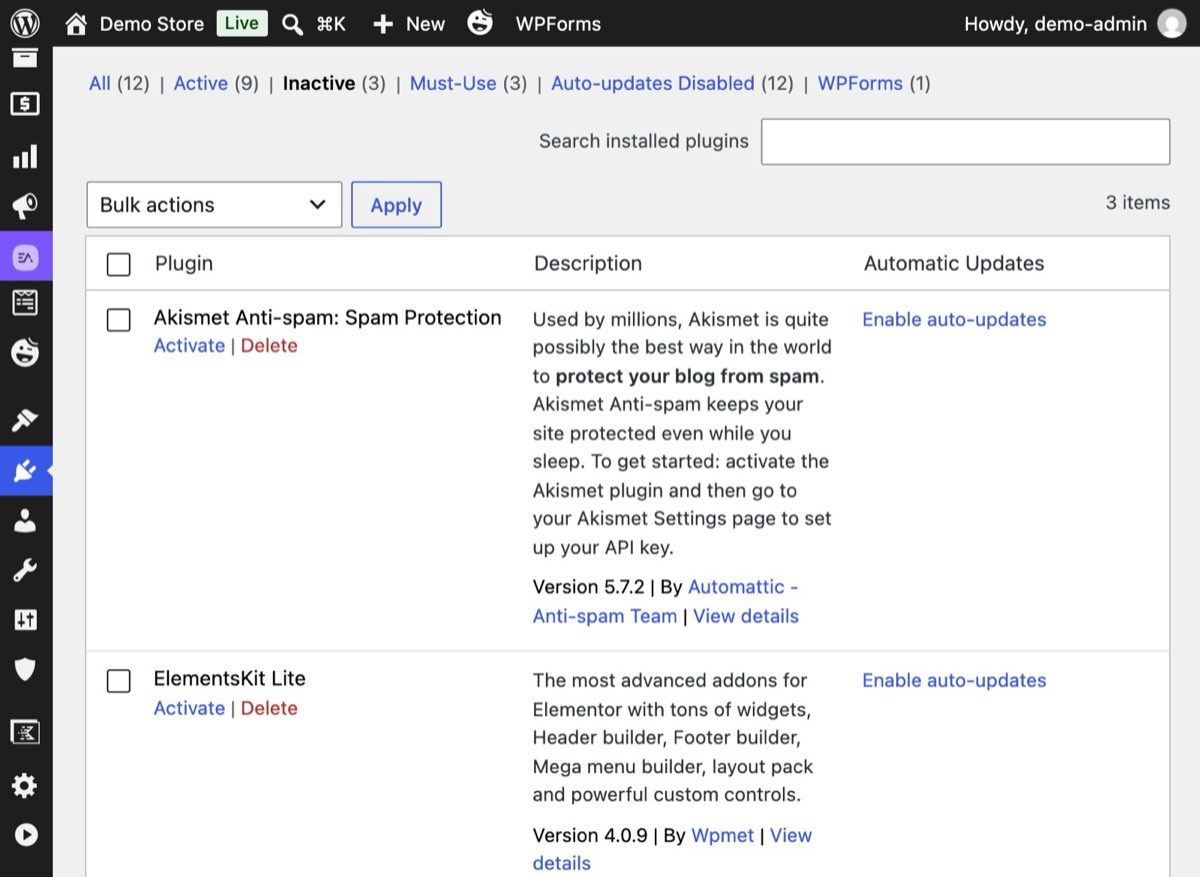
In Plugins → Installed Plugins, click Inactive. Anything here does nothing for your site but still sits on your server.
2Step 2
Measure what active plugins load
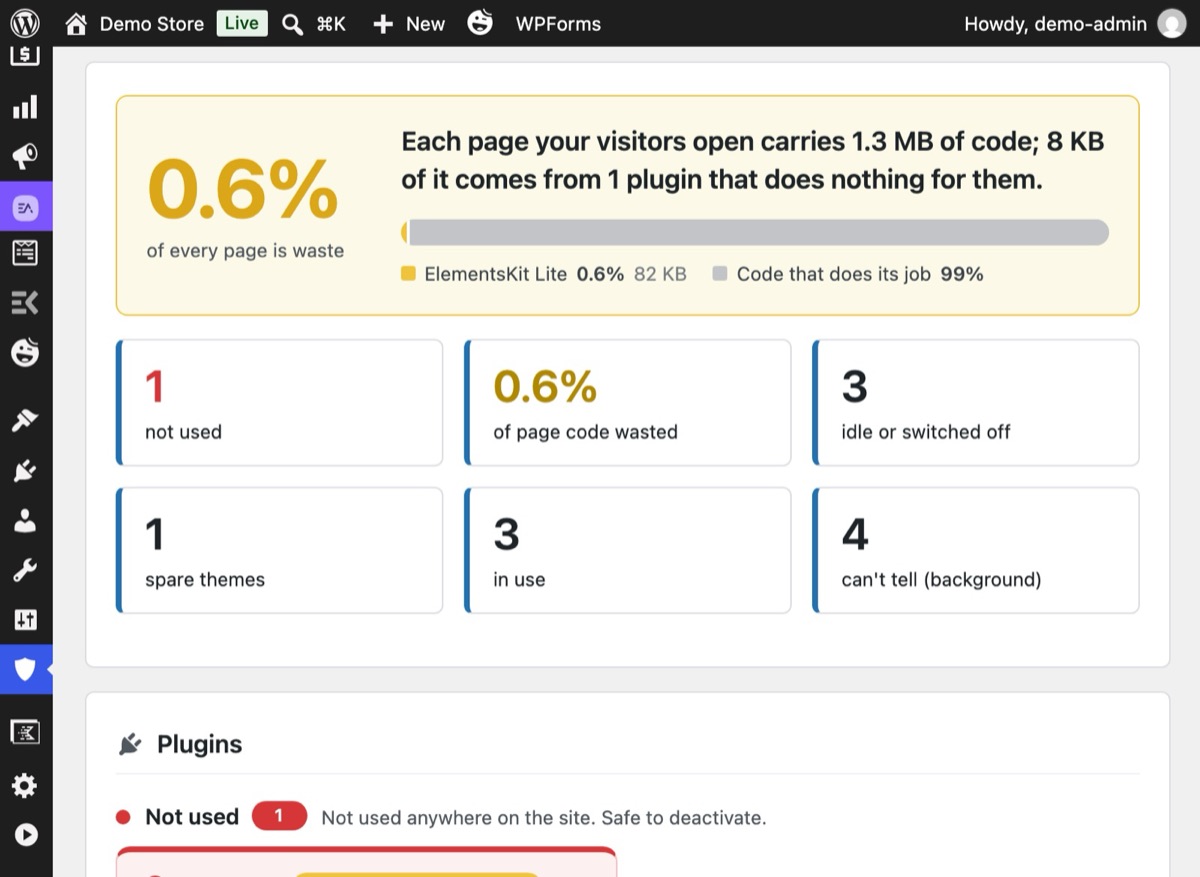
An active addon pack can load its scripts and styles even if none of its widgets are used. Declutter measures your live pages and shows the share of page code that comes from plugins doing nothing: red from 15%, orange from 5%, yellow below.
3Step 3
Run Declutter and read the evidence
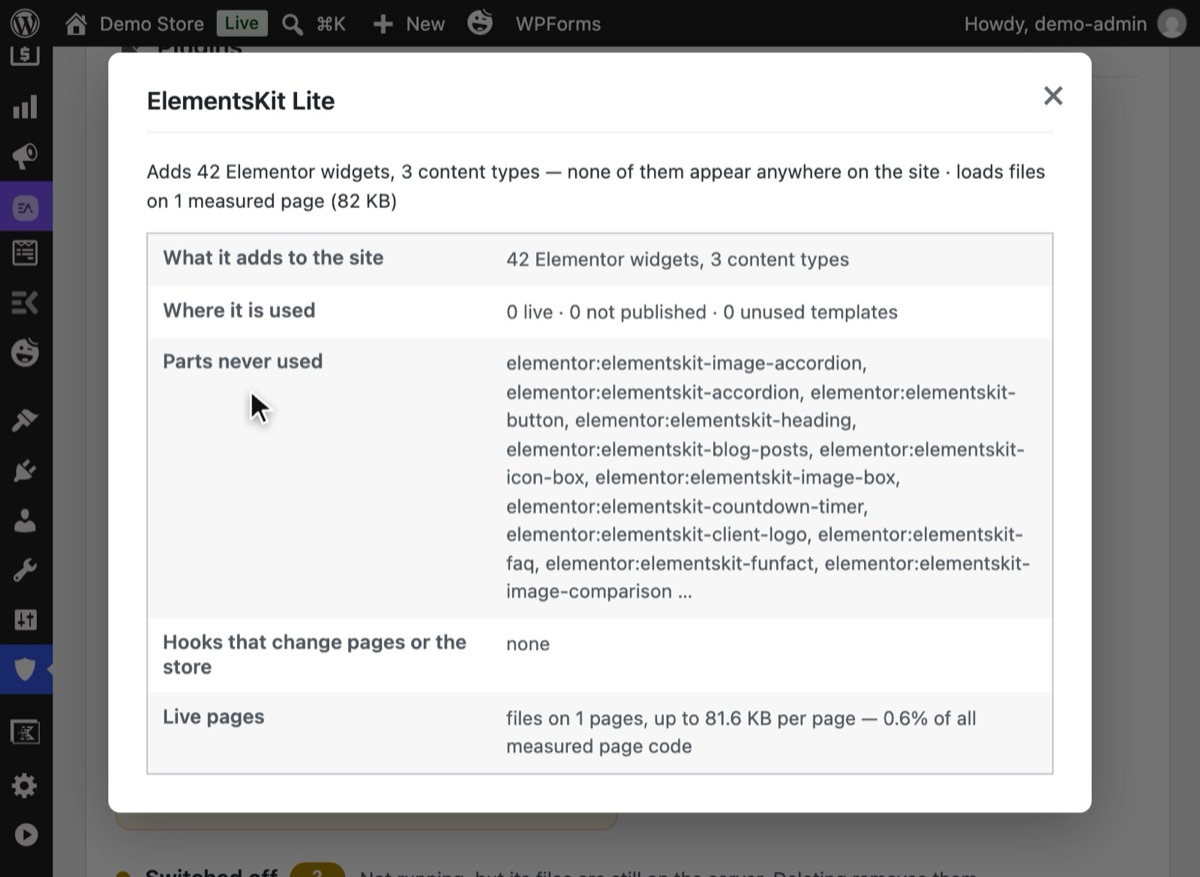
In Hushfort, open Declutter and press Scan my site. Each plugin gets a status and a reason. Press Why? to see what it adds, where it is used and what it loads.
4Step 4
Set it aside, then test
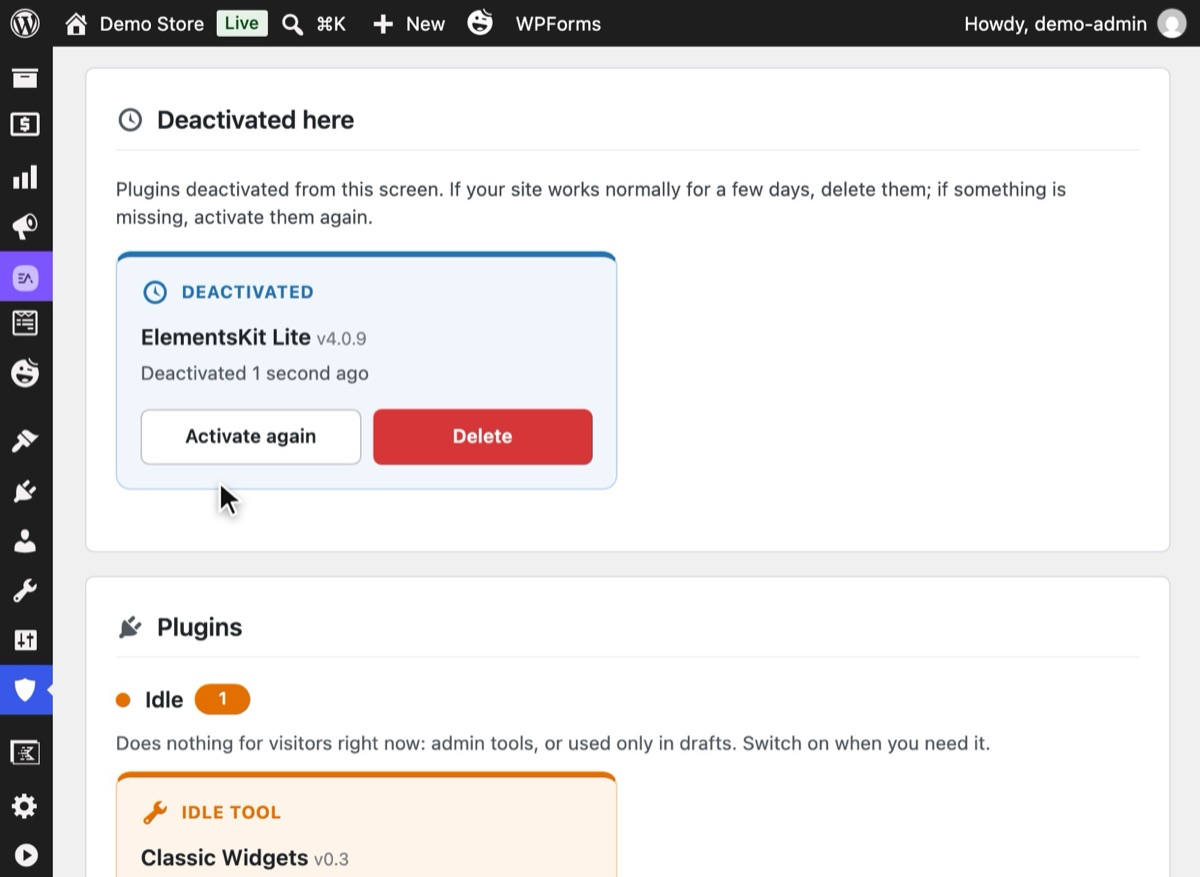
Press Deactivate on the card. The plugin moves to "Deactivated here", which says when it was switched off; browse your site, and if anything looks wrong, press Activate again.
5Step 5
Delete through WordPress's own confirmation
Once you're sure, delete it from the card or the Plugins screen. The same check runs from the command line, too.
WP-CLI on the demo store (output shortened) $ wp hushfort declutter --skip-pagesplugin verdict evidenceakismet/akismet.php inactive Switched off, but its files are still on the server …classic-widgets/classic-widgets.php tool Admin tool — does nothing for visitors …elementor/elementor.php used Used in 2 live placeselementskit-lite/elementskit-lite.php inactive Switched off, but its files are still on the server …hello-dolly/hello.php inactive Switched off, but its files are still on the server …woocommerce/woocommerce.php used Used in 51 live places


Why it matters
Every plugin you install is code you've agreed to run and keep updated. Over the years, sites collect plugins the way drawers collect cables: installed for a landing page that's gone, a widget tried once, a form replaced by another form. Nobody remembers why they're there, so nobody dares remove them.
That has two costs.
Security. Each plugin is another set of files on your server. A forgotten plugin is the one you're least likely to notice when it needs an update.
Speed. Active plugins often load their scripts and styles on every page, used or not. On one site we measured, unused plugins made up 44% of the code on every page. One addon pack alone had 35 Elementor widgets, none used anywhere, and loaded 886 KB on every page.
Common mistakes
- Looking only at "Inactive". The heavy waste is usually in active plugins whose features you no longer use.
- Searching only published pages. A widget may live in a template, a popup, a menu or a draft you're about to publish.
- Deleting in one step. Switch off first, test, then delete. Some plugins wipe their settings on deactivation or deletion.
- Removing background plugins. Caching, SEO, email and backup plugins show nothing on the page but do important work. "Not visible" isn't "not used".
- No backup. Always have one before you delete anything.
Without a plugin
- Plugins → Installed Plugins → Inactive. Delete what you're sure you don't need.
- For each active plugin, write down what it adds: shortcodes, blocks, widgets, form fields. Search your content for them. For shortcodes, a database search works:
wp db query "SELECT ID, post_title, post_status FROM wp_posts WHERE post_content LIKE '%[old_slider%' AND post_type NOT IN ('revision');"
- Check page weight. Open your homepage in your browser's developer tools, Network tab,
and sort by size. Look for files loaded from
/wp-content/plugins/<name>/. - Deactivate one plugin at a time, browse the site, and check forms, checkout and menus.
It works, and it's worth doing once. It's also slow: shortcodes, blocks, Elementor widgets, menus and widget areas are all stored differently, and builder data hides inside post meta that a simple search misses.
If something goes wrong
- Something broke after setting a plugin aside. Switch it back on from the Declutter list with one click.
- Settings disappeared after deleting. Some plugins clear their data on deletion. Restore from your backup, or reinstall and reconfigure.
- A result says "Can't tell". Declutter found signs the plugin might matter, such as hooks that change output or the store. Leave it unless you know what it does.
With Hushfort
Hushfort's Declutter layer asks your site, as a visitor sees it, what each plugin adds: shortcodes, blocks, Elementor widgets, form fields, widgets, content types, payment and shipping methods. It reads every post, page, product, template, widget area and menu, including drafts, private and scheduled content, and measures your live pages to show how much each plugin loads.
- Results come with evidence, and the share of wasted page code is colour-coded: red at 15% or more, orange at 5–15%, yellow under 5%.
- Removal is two steps and reversible: set aside (switch off, dated, one-click undo), then delete through WordPress's own confirmation.
- Plugins used only in drafts ask before they go.
- Background plugins are never called unused. When unsure, it says "Can't tell".
- Also available as
wp hushfort declutter.
Nothing changes until you confirm.
Frequently asked questions
Are inactive plugins a security risk?
Do unused plugins slow down WordPress?
Is it safe to delete a plugin?
How can I tell if an Elementor addon is used?
Will Declutter remove my caching or SEO plugin?
Related how-tos
Can one plugin replace several WordPress security plugins?
Many sites run a separate plugin for every security worry. How to audit what you have, see what overlaps, and move to one plugin without a gap.
Read the stepsHow do I spot and block fake Googlebot traffic on WordPress?
Bots that pretend to be Googlebot slow WordPress down. Verify real crawlers by IP, block the fakes, budget requests per IP and never block checkout.
Read the stepsHow do I run a security check on what my WordPress site exposes?
Test your WordPress site the way a bot does. Five requests show if the login, XML-RPC and your usernames are open, and how to close what you find.
Read the steps