How do I limit login attempts in WordPress?
By Eureka Studio · Updated
Short answer
WordPress lets anyone guess passwords forever. To limit login attempts, use a plugin that counts failed logins per IP within a time window and locks that IP out for a while, for example 8 failures in 5 minutes means a 15-minute wait. Make sure 2FA and application-password failures count too, and allowlist your own IP.
Steps
1Step 1
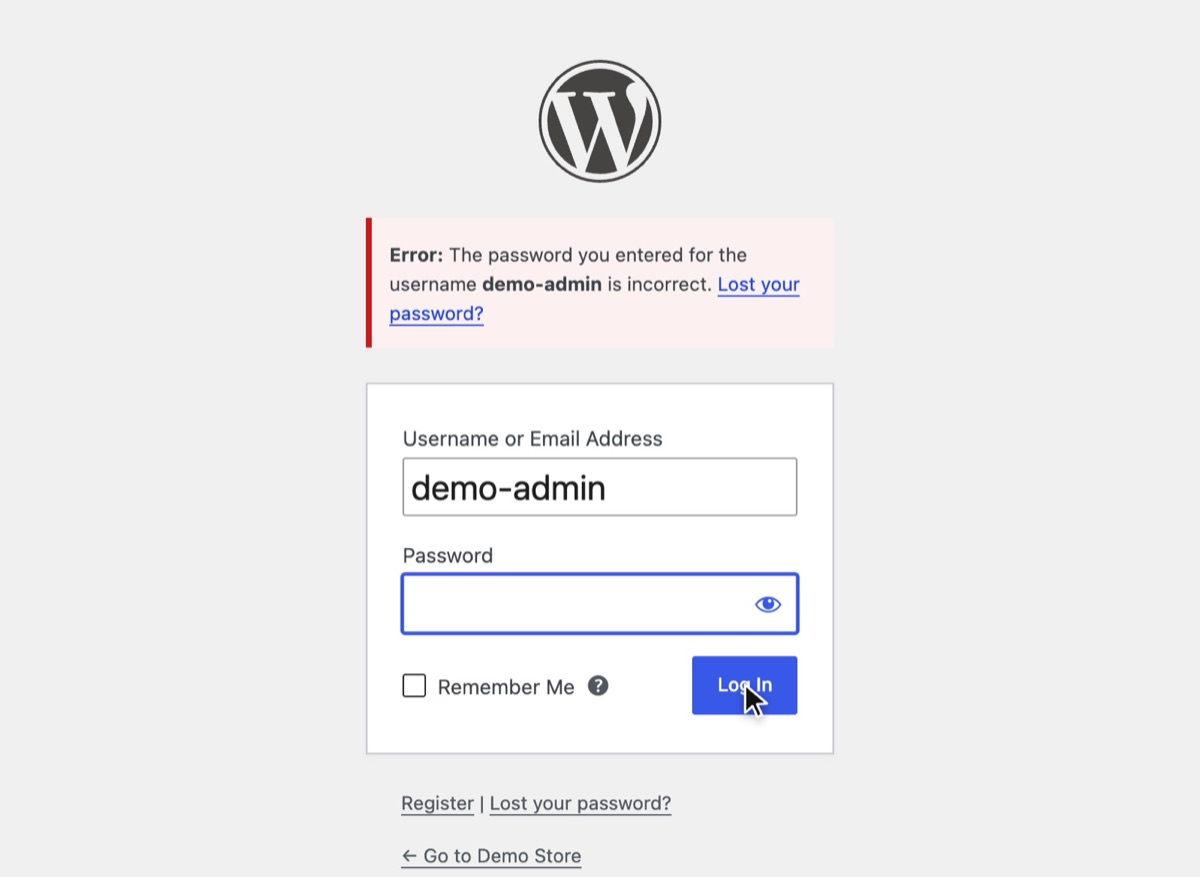
See what unlimited guessing looks like
Without a limit, WordPress answers every wrong password with the same error, as often as it is asked, and the default message even confirms that the username exists.
2Step 2
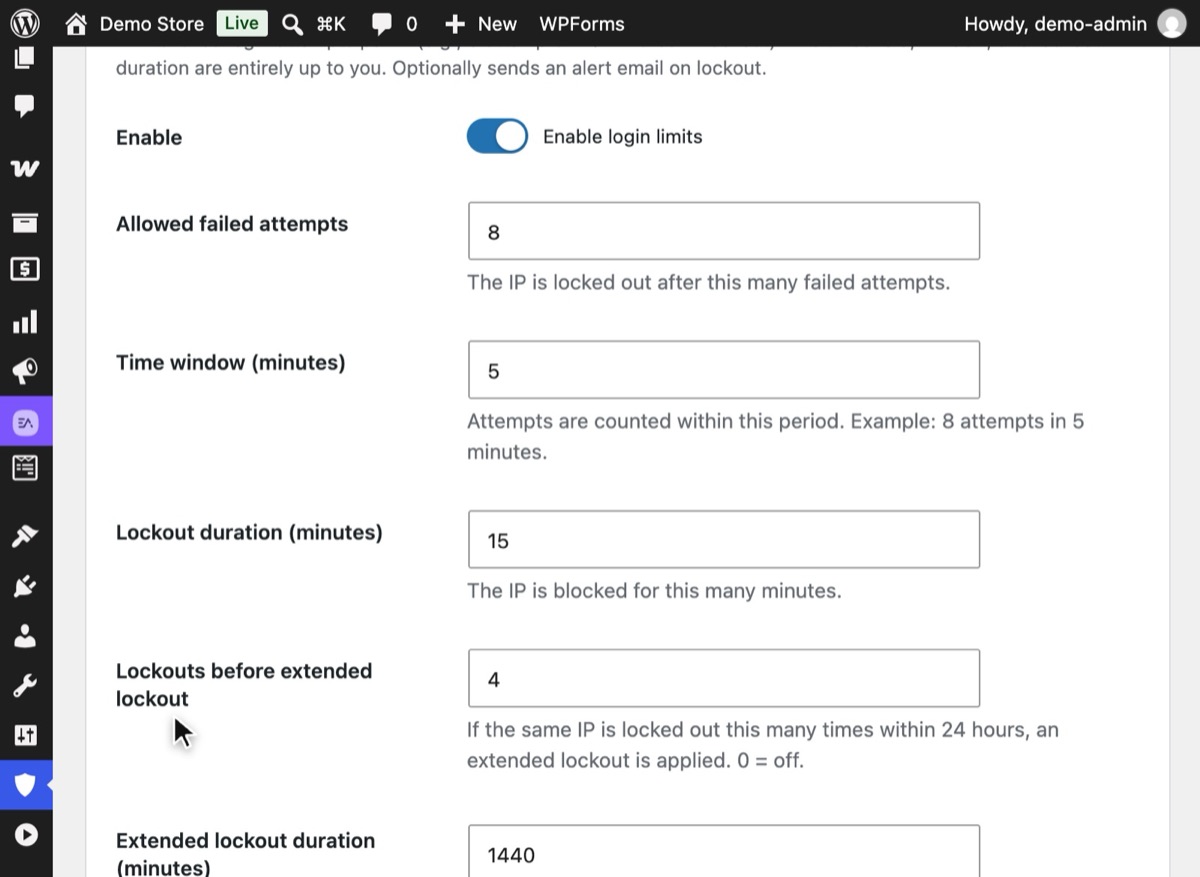
Turn on Login Limits and set the rules
In WordPress, open Hushfort → Limits & Restrictions and switch on Enable login limits. The defaults are 8 failed attempts within 5 minutes, then a 15-minute lockout; after 4 lockouts in 24 hours the lockout lasts 1,440 minutes. Press Save Changes.
3Step 3
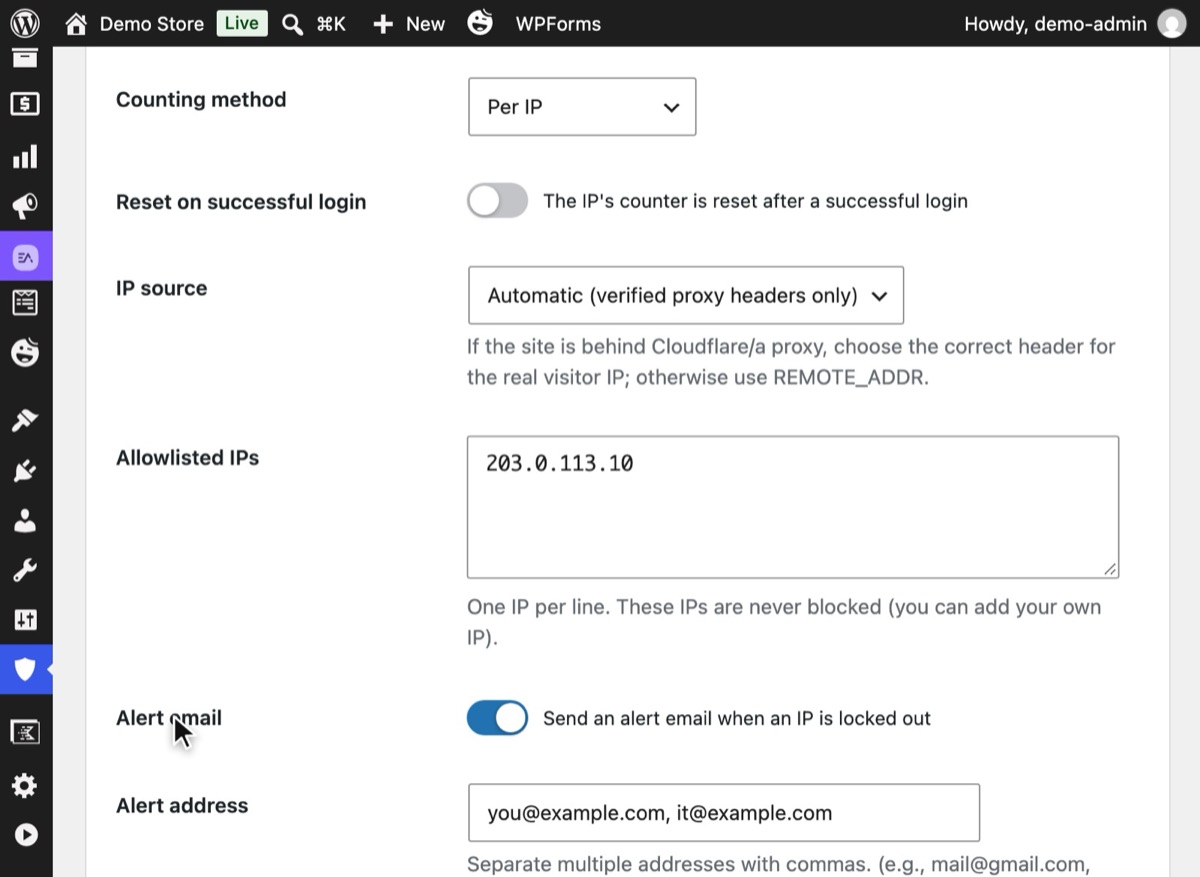
Allowlist your own IP and check the IP source
Further down, set IP source. "Automatic (verified proxy headers only)" fits most sites, including those behind Cloudflare. Then add your office or home IP under Allowlisted IPs so you can never lock yourself out, and save.
4Step 4
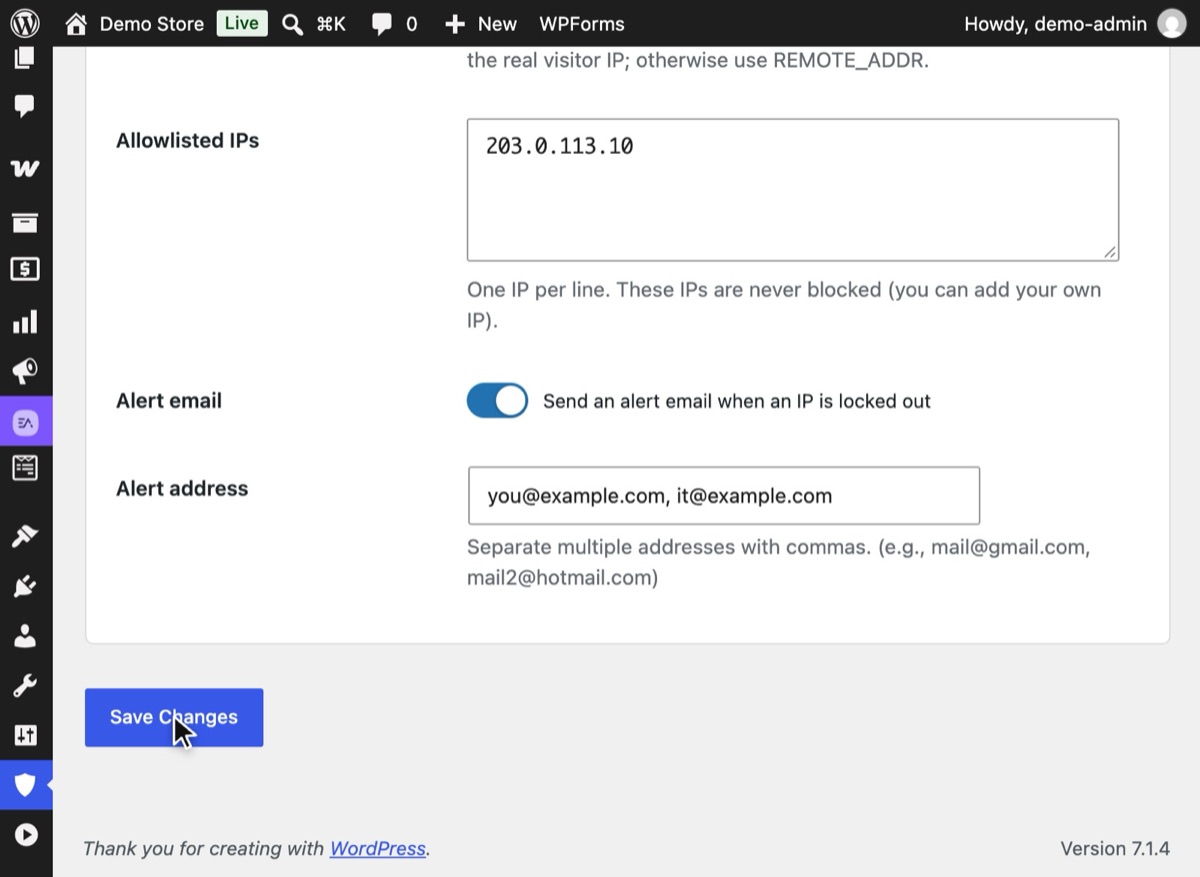
Get an email when an IP is locked out
Switch on Alert email and list one or more addresses, separated by commas. The switch needs working SMTP on the site; without it, Hushfort keeps the option off and tells you why.
5Step 5
Watch the limit work
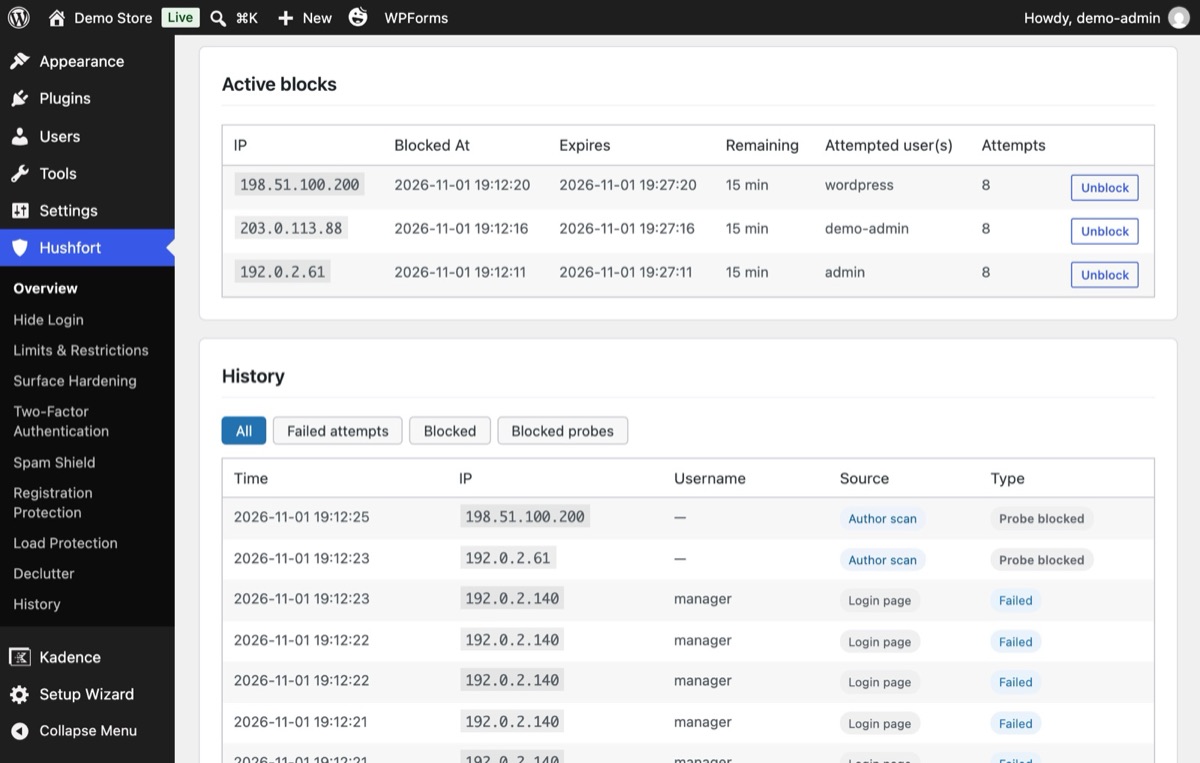
After the allowed number of failures, the IP is locked out instead of getting another try. History lists every active block with the username it tried, the number of attempts and when the block ends, with an Unblock button.


Why it matters
A brute-force attack is just patience: try a password, get it wrong, try the next. WordPress doesn't mind. It will answer a thousand wrong guesses from the same address as politely as the first. If an account has a weak or reused password, it is only a matter of time.
A login limit changes the arithmetic. If an IP can make only a handful of attempts before it has to wait fifteen minutes, guessing a decent password takes years instead of hours. It also saves your server from rendering the login page over and over for a bot.
What it doesn't cover on its own. Attackers who own thousands of IP addresses can send a few guesses from each. That's why a login limit works best alongside two-factor login, which makes a guessed password useless without the code.
Common mistakes
- Counting only the login form. Passwords can also be tried through
xmlrpc.php, through REST API application passwords, and at the two-factor code step. If those don't count toward the limit, attackers simply use them. Close XML-RPC login too; see how to disable XML-RPC safely. - Reading the wrong IP behind a proxy. If your site is behind Cloudflare and the plugin
reads the proxy's address, one bot can lock out every visitor. If it blindly trusts the
X-Forwarded-Forheader instead, a bot can invent a new IP on every request and never be counted. The safe rule is to trust proxy headers only when the request really comes from the proxy. - Lockouts that are too long. A 24-hour lockout for three typos punishes your own staff. Keep the first lockout short and make repeated lockouts longer.
- No allowlist. Add your own fixed IP so a forgotten password never shuts you out.
Without a plugin
WordPress has a hook, wp_login_failed, that fires after every failed login. You can count
failures with a transient and refuse logins when the count is too high. A minimal version for
a must-use plugin (wp-content/mu-plugins/login-limit.php):
<?php
add_action( 'wp_login_failed', function () {
    $key = 'll_' . md5( $_SERVER['REMOTE_ADDR'] );
    $n   = (int) get_transient( $key );
    set_transient( $key, $n + 1, 15 * MINUTE_IN_SECONDS );
} );

add_filter( 'authenticate', function ( $user ) {
    $key = 'll_' . md5( $_SERVER['REMOTE_ADDR'] );
    if ( (int) get_transient( $key ) >= 8 ) {
        return new WP_Error( 'too_many', 'Too many failed attempts. Try again later.' );
    }
    return $user;
}, 30 );
It works, but be honest about what it misses: it reads REMOTE_ADDR only, so behind a proxy
it counts the proxy; it doesn't count XML-RPC multicall guesses as separate attempts; it has
no allowlist, no alert email and no log. Each of those is more code to write and maintain.
Some hosts also offer server-level tools such as fail2ban watching the access log. That is strong if your host runs it for you; on shared hosting you usually can't set it up.
If something goes wrong
- You locked yourself out. Wait for the lockout to end, try from another network such as mobile data, or ask another administrator to add your IP to the allowlist.
- Everyone gets locked out at once. Your site is probably behind a proxy and the plugin is reading the proxy's IP. Change the IP source setting.
- Lockouts never happen. Check whether the IP source trusts a header that bots can fake. If every attempt shows a different "IP", that's the cause.
For every way back in, see Locked out after changing the login URL.
With Hushfort
Hushfort's Login Limits layer counts failed logins per IP (or per IP and username) inside a time window you choose, and locks the IP out for a time you choose. Repeated lockouts within 24 hours can trigger a longer, extended lockout.
- Failed two-factor codes and failed application-password logins count too, so there is no side door for guessing.
- Proxy headers are trusted only when the request really comes from Cloudflare or a private network.
- Alert emails go to as many addresses as you list.
- Every failed and blocked attempt appears in a filterable History.
- The allowlist is shared with every other Hushfort layer, so you add yourself once.
Deactivating Hushfort lifts all existing lockouts.
Frequently asked questions
How many login attempts should I allow?
Does WordPress limit login attempts by default?
Can a login limit lock me out of my own site?
Is limiting login attempts enough to stop brute force?
Why do lockouts hit the wrong people behind Cloudflare?
Related how-tos
How do I add two-factor authentication (2FA) to WordPress?
Add a second login step with any authenticator app. Set up 2FA in WordPress, save recovery codes, and know what to do if you lose your phone.
Read the stepsWhat is xmlrpc.php, and how do I disable it in WordPress?
xmlrpc.php is a second login door that a hidden login page doesn't close. How to shut it safely, keep pingbacks if you want, and test the result.
Read the stepsHow do I change the WordPress login URL?
Change the WordPress login URL and hide wp-admin in five safe steps. Test before you log out, and know how to get back in if you forget it.
Read the steps