How do I add two-factor authentication (2FA) to WordPress?
By Eureka Studio · Updated
Short answer
WordPress has no built-in two-factor login. Install a 2FA plugin that supports TOTP, scan its QR code with any authenticator app, enter the six-digit code to confirm, and save the recovery codes offline. From then on, a password alone can't open your account. Keep an emergency switch ready in wp-config.php.
Steps
1Step 1
Switch on two-factor for the site
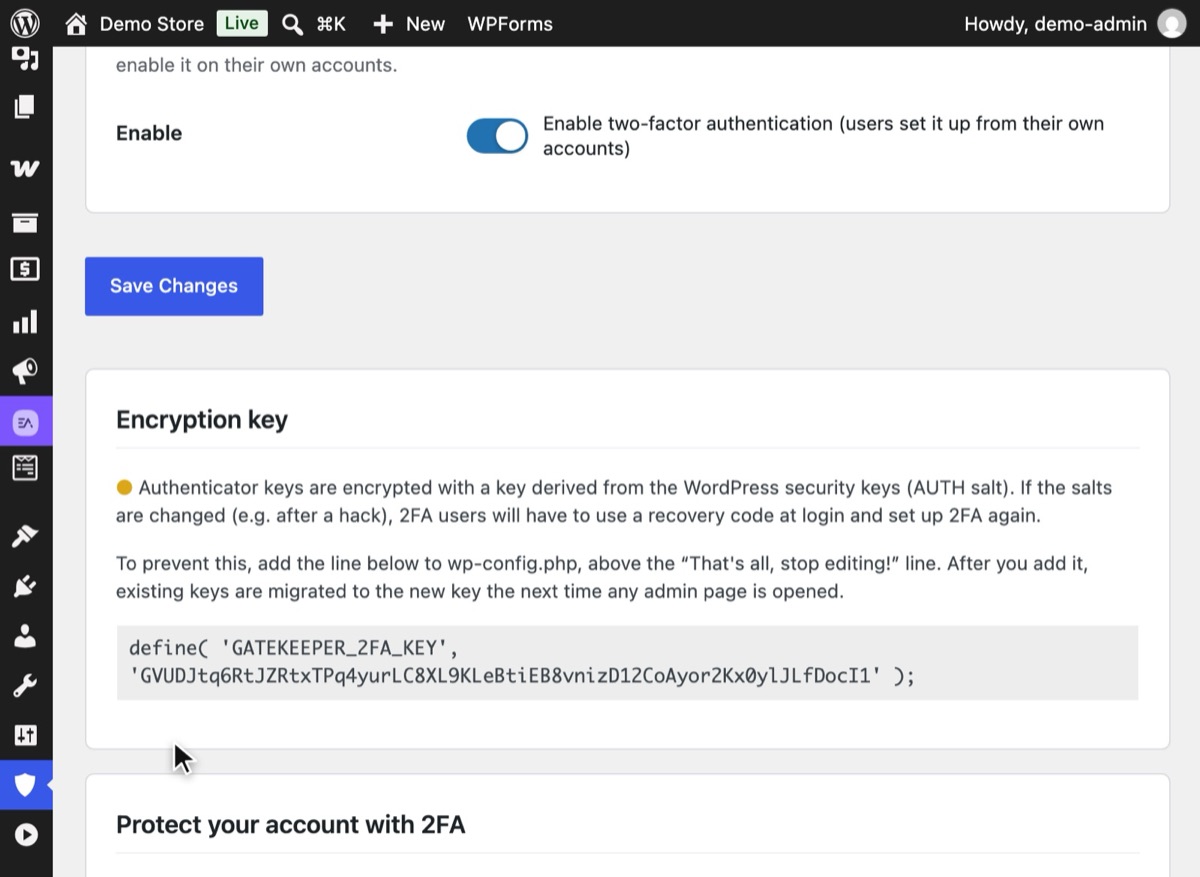
In WordPress, open Hushfort → Two-Factor Authentication and switch on "Enable two-factor authentication". Nothing changes for users until each one sets up their own code.
2Step 2
Scan the QR code with your app
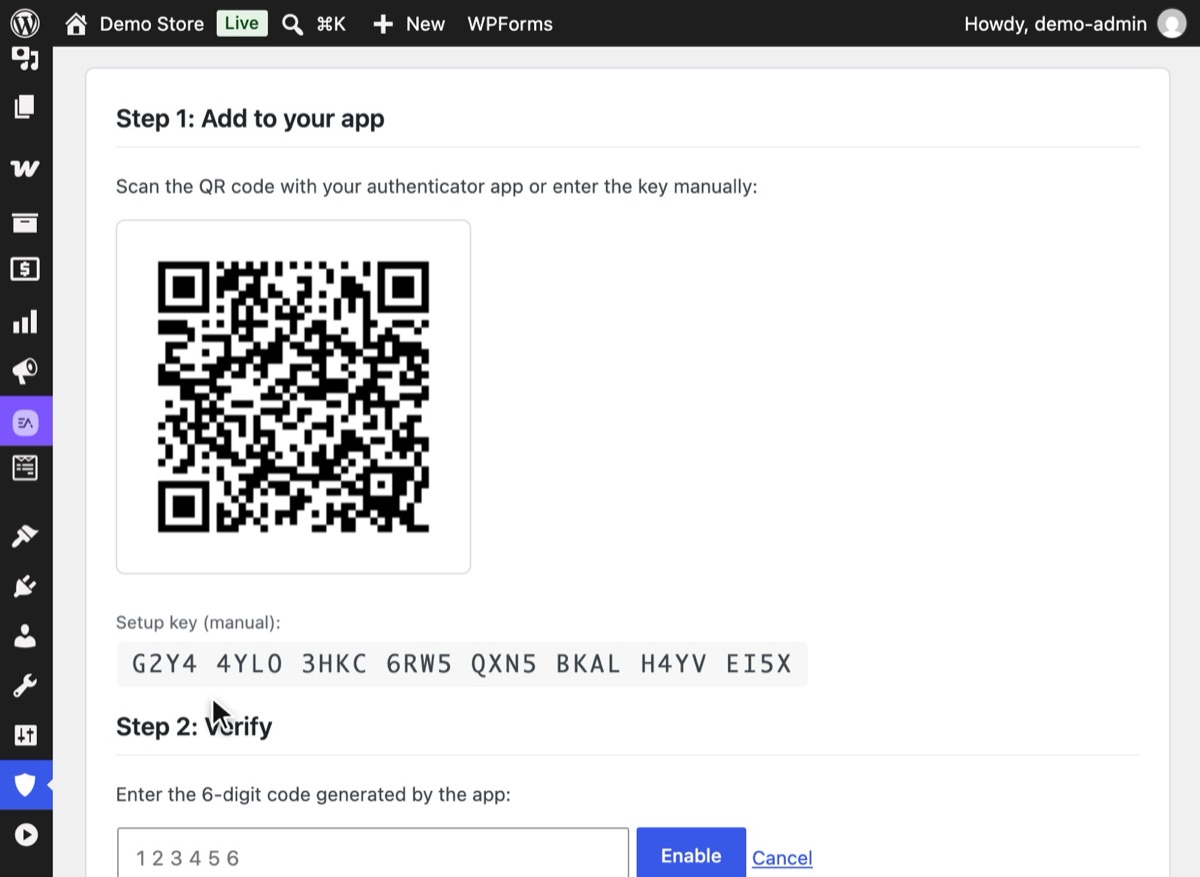
Press Start 2FA Setup. Scan the QR code with any authenticator app, or type the setup key shown under it. The QR code is drawn on your own server, so the secret never leaves it. Other users find the same setup in their own profile.
3Step 3
Confirm with the six-digit code
Under Step 2: Verify, type the code your app shows and press Enable. Codes change every 30 seconds, so use the current one.
4Step 4
Save your recovery codes offline
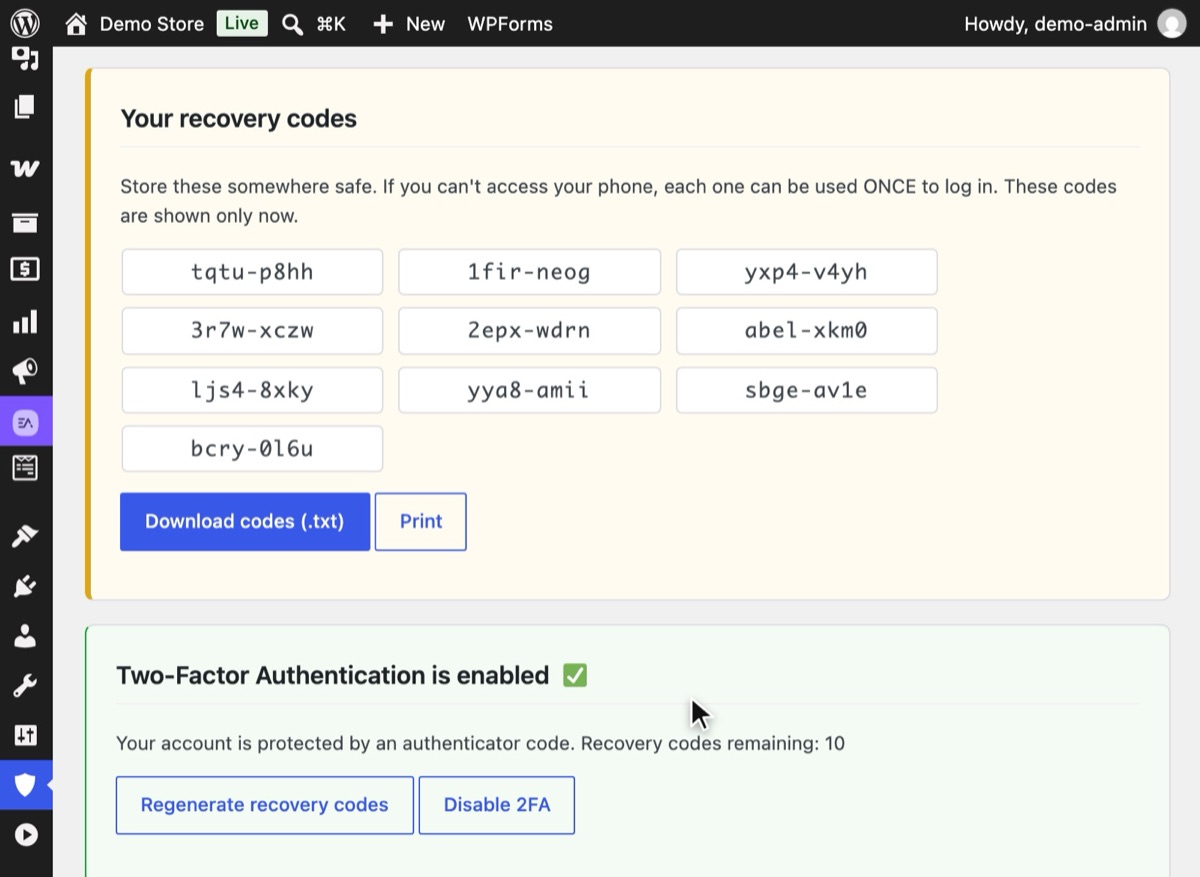
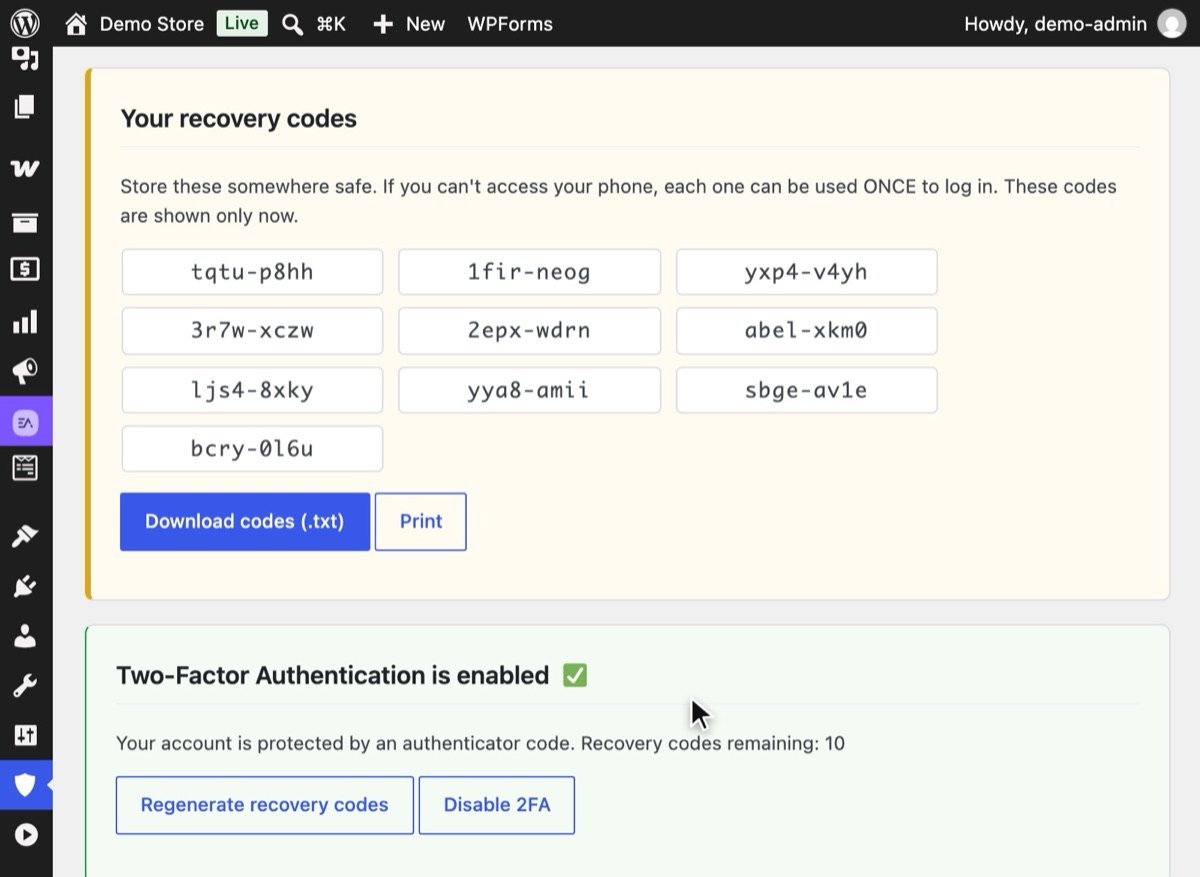
Hushfort shows ten recovery codes once, right after setup. Press Download codes (.txt) or Print and keep them somewhere other than your phone. Each code works once.
5Step 5
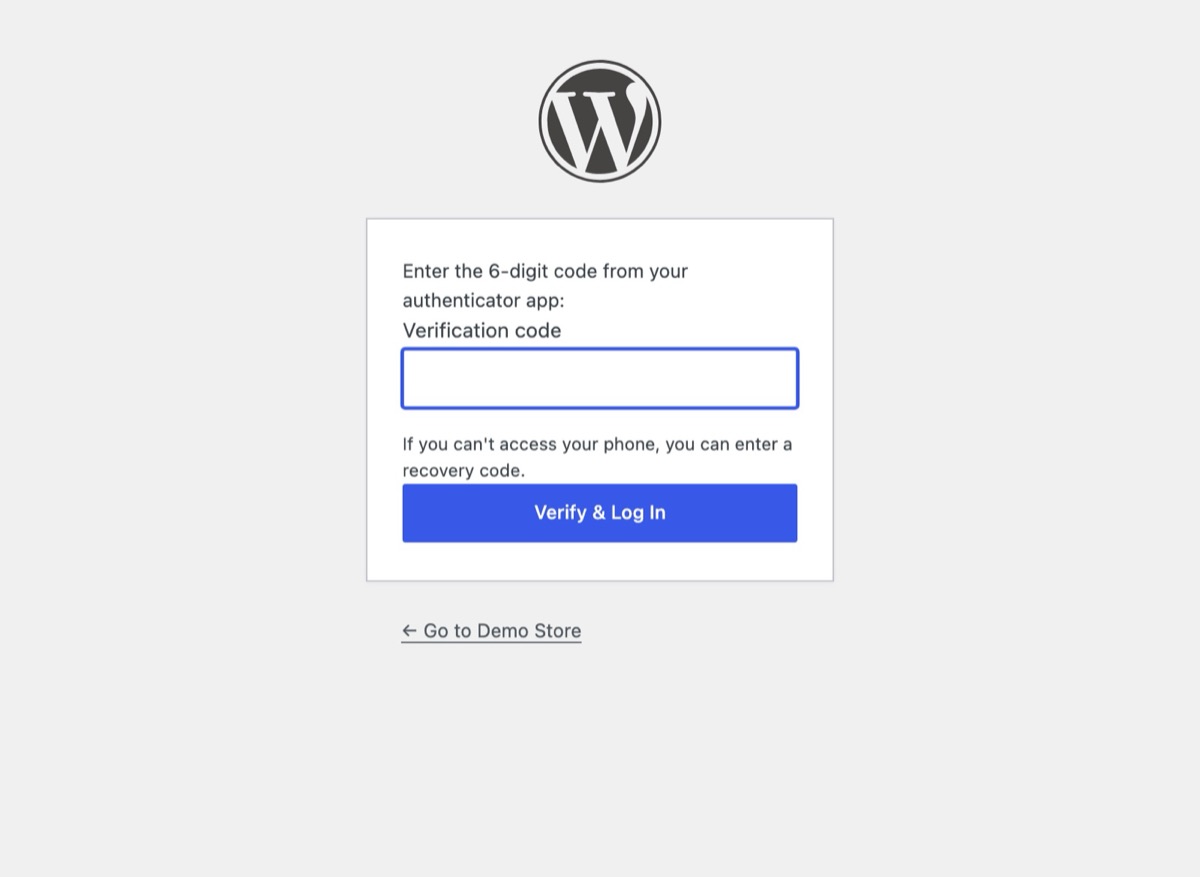
Log in with password plus code
Next time you sign in, WordPress asks for the code from your app after your password. A stolen password alone now gets an attacker nowhere.


Why it matters
Passwords leak. They get reused on another site that's breached, typed into a fake login page, or guessed. Once someone has your password, WordPress can't tell them apart from you.
Two-factor authentication (2FA) adds something only you hold: a six-digit code from an app on your phone that changes every 30 seconds. To get in, an attacker needs both your password and your phone at the same moment. For an administrator account, that one change removes the most common way sites are taken over.
The standard behind those codes is TOTP (time-based one-time passwords). It's open, it runs offline, and every major authenticator app supports it, so you're not tied to one vendor.
Common mistakes
- Not saving recovery codes. Losing a phone without recovery codes is the most common way people lock themselves out after turning on 2FA. Print them or keep them in a password manager that isn't on the same phone.
- Using one phone for everything. If the codes and the recovery codes live on the same device, losing it loses both.
- Assuming 2FA covers every door. If
xmlrpc.phpstill accepts passwords, or failed codes aren't counted, attackers can keep guessing. Close XML-RPC login and make sure 2FA failures count toward your login limit. - QR codes made by a third-party service. Some setups draw the QR code using an external image service, which means your secret is sent over the internet. Prefer a QR code made on your own server.
- Changing security salts without a plan. In some setups the 2FA secrets are tied to your WordPress salts. Know what your plugin does if the salts change.
Without a plugin
There's no honest way to add TOTP 2FA to WordPress without code. The options outside a WordPress plugin are:
- Your host's login protection. Some managed hosts put a 2FA layer in front of
wp-admin. It's convenient where available, but it isn't portable when you move hosts. - Single sign-on. Larger teams can route WordPress logins through an identity provider that enforces 2FA. Strong, but more setup than most small sites need.
- HTTP basic auth on wp-admin. This adds a second password, not a second factor. It slows bots, but a leaked password list can contain both.
If you write your own, you'll need to store each user's secret encrypted, verify codes with a small clock drift, rate-limit the code step, generate recovery codes and give admins a reset. That's a lot of security-critical code to maintain alone.
If something goes wrong
The code is always "invalid". Check the time on your phone. TOTP depends on the clock; turn on automatic time in your phone's settings.
You lost your phone. Use a recovery code on the code screen. Each code works once.
No recovery codes left. Add this line to
wp-config.php:define( 'GATEKEEPER_2FA_DISABLE', true );Log in, set up 2FA again on your new phone, save the new codes, then remove the line.
Another admin can help. An administrator can reset 2FA for your account from your user profile.
The full guide is in Locked out after changing the login URL.
With Hushfort
Hushfort's Two-Factor layer uses TOTP, so it works with any authenticator app.
- The QR code is generated locally. Your secret never leaves your server.
- Each user sets up 2FA from their own profile screen; administrators can reset it.
- Recovery codes can be downloaded or printed.
- Secrets are stored encrypted (AES-256 with an HMAC check).
- If your WordPress security salts change, 2FA doesn't silently switch off. Affected users
sign in with a recovery code and are asked to set up 2FA again. You can also set a separate
key,
GATEKEEPER_2FA_KEY(32 characters or more), inwp-config.phpso salts don't matter. - Failed codes count toward Login Limits.
Frequently asked questions
Does WordPress have two-factor authentication built in?
Which authenticator app should I use?
What if I lose my phone?
Is SMS or email 2FA better than an app?
Should every user have 2FA?
Related how-tos
How do I limit login attempts in WordPress?
Stop brute-force password guessing by locking out an IP after a few failed logins. Settings that work, the manual code, and the holes to close.
Read the stepsWhy does wp-admin show a 404 after I changed the login URL, and how do I get back in?
Forgot your custom login URL or lost your 2FA phone? Four calm ways back into WordPress, from one line in wp-config.php to removing the plugin folder.
Read the stepsHow do I change the WordPress login URL?
Change the WordPress login URL and hide wp-admin in five safe steps. Test before you log out, and know how to get back in if you forget it.
Read the steps