What is xmlrpc.php, and how do I disable it in WordPress?
By Eureka Studio · Updated
Short answer
XML-RPC lets apps log in through xmlrpc.php, a separate door that hiding wp-login.php doesn't close. Disabling it is safe unless you use Jetpack or the WordPress mobile app. Block the file in .htaccess, add the xmlrpc_enabled filter, or use a plugin that closes XML-RPC login while keeping pingbacks. Then test it.
Steps
1Step 1
Check whether xmlrpc.php answers
Visit yoursite.com/xmlrpc.php. If you see "XML-RPC server accepts POST requests only.", the door is open.

2Step 2
Understand why it matters
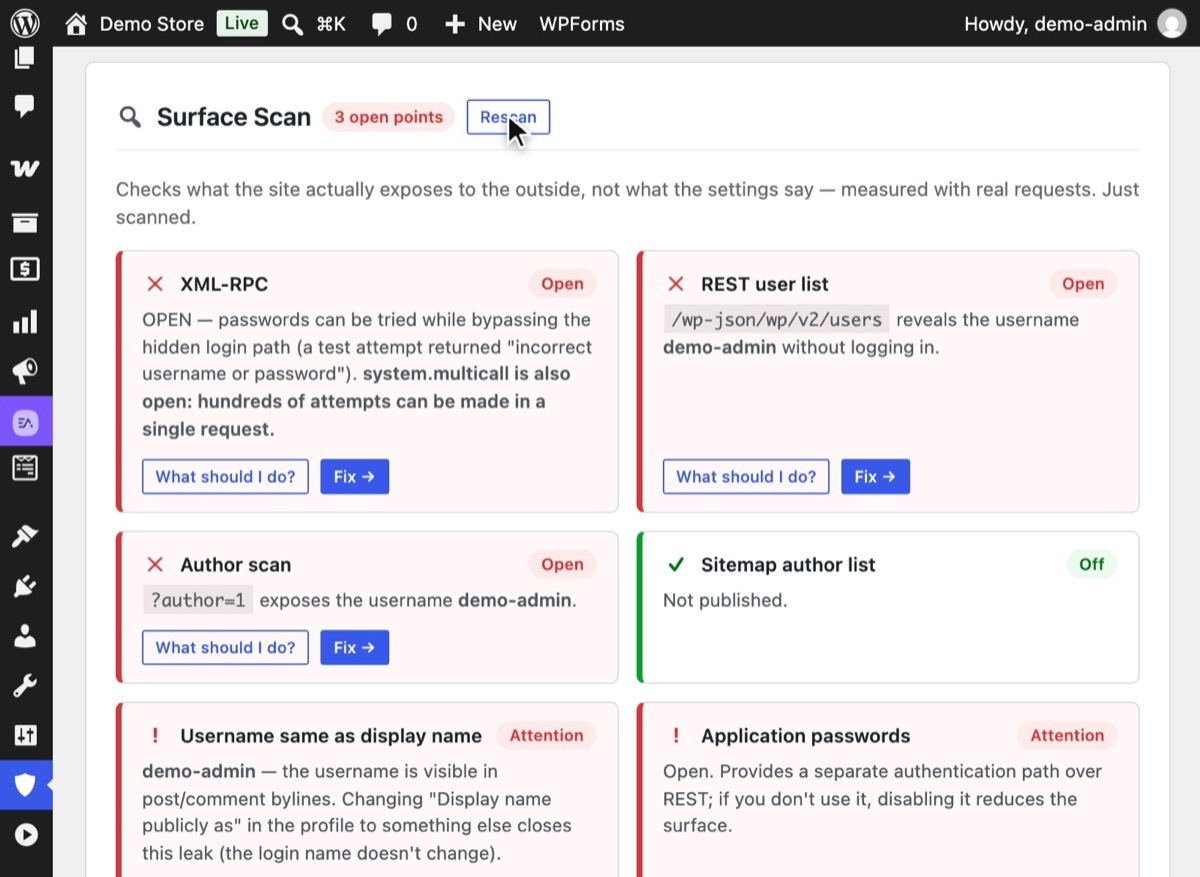
Hushfort's Surface Scan tries it for real. On an open site it reports that passwords can be tried while bypassing the hidden login path, and that system.multicall lets one request carry hundreds of attempts.
3Step 3
Choose how far to close it
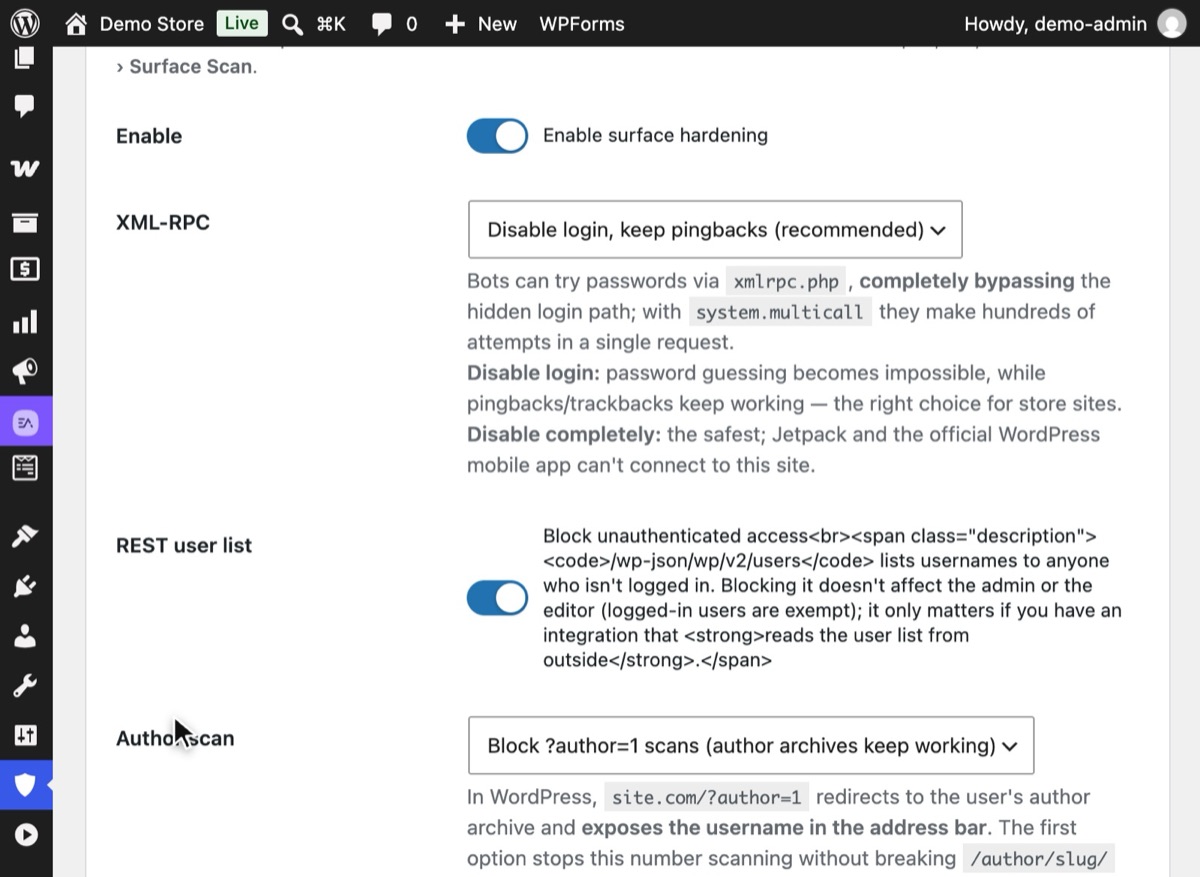
Open Hushfort → Surface Hardening and switch on Enable surface hardening. XML-RPC starts on "Disable login, keep pingbacks (recommended)", which fits most sites. "Disable completely" is strictest but stops Jetpack and the official mobile app. Press Save Changes.
4Step 4
Test that login through XML-RPC is refused
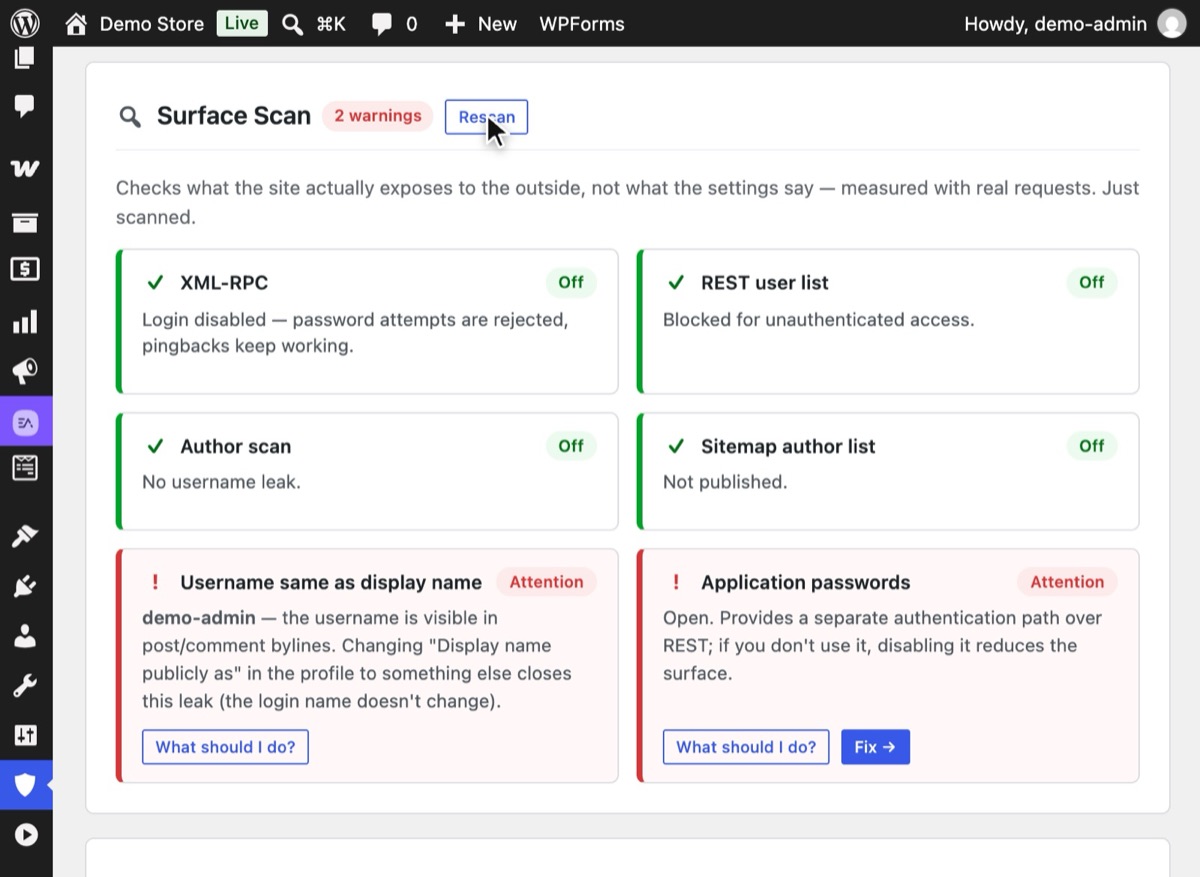
Back on the Overview, press Rescan. The XML-RPC line should now read "Login disabled — password attempts are rejected, pingbacks keep working."


Why it matters
XML-RPC is an old remote-control interface for WordPress. Before the REST API existed, it was
how desktop editors and mobile apps published posts. It still ships with every WordPress site,
at /xmlrpc.php, and it still accepts a username and password with each request.
That makes it a second login door. Hiding wp-login.php doesn't touch it. Login-limit
code that watches only the login form doesn't see it. And with system.multicall, one HTTP
request can carry hundreds of password guesses. A limit that counts requests sees one
attempt where there were five hundred.
This isn't theoretical. We built this layer after a store kept receiving password attempts through XML-RPC while its login page was already hidden.
Do you use XML-RPC? Probably not, if none of these apply to you:
- You connect the site to Jetpack.
- You publish or moderate from the official WordPress mobile app.
- You use an older desktop blogging tool, or a service that asks for your WordPress username and password (rather than an application password) to post on your behalf.
- You rely on pingbacks from other blogs.
If you're unsure, close login only and keep pingbacks. That removes the password-guessing risk and leaves the harmless parts in place. You can always go stricter later.
Common mistakes
- Hiding the login and stopping there. Password guessing simply moves to
xmlrpc.php. - Blocking the whole file without checking. Jetpack and the official WordPress mobile app connect through XML-RPC. If you use them, close only the login methods, or test carefully.
- Trusting a toggle without testing. Some methods leave parts of XML-RPC answering. Always check the result with a real request (see step 4, or check what your site exposes).
- Forgetting the cache layer. If a CDN rule already blocks
xmlrpc.php, a WordPress-level setting won't show any effect. That's fine; just know which layer is doing the work.
Without a plugin
Option 1: the xmlrpc_enabled filter. Add this to a small must-use plugin
(wp-content/mu-plugins/no-xmlrpc-login.php) or your child theme's functions.php:
<?php
add_filter( 'xmlrpc_enabled', '__return_false' );
This disables XML-RPC methods that require a login. Pingbacks keep working because they don't
need one. On its own it doesn't remove system.multicall, and the file still answers requests.
To drop the multicall method as well:
<?php
add_filter( 'xmlrpc_methods', function ( $methods ) {
    unset( $methods['system.multicall'] );
    return $methods;
} );
Option 2: block the file at the server. On Apache, in .htaccess:
<Files xmlrpc.php>
  Require all denied
</Files>
On Nginx: location = /xmlrpc.php { deny all; }. This is the strictest option and costs the
server nothing, but it also kills pingbacks, Jetpack and the mobile app, and it lives outside
WordPress, so it's easy to forget when you move hosts.
If something goes wrong
- Jetpack shows a connection error. Jetpack needs XML-RPC. Switch from "Disable completely" to "Disable login, keep pingbacks", or remove your server rule.
- The WordPress mobile app can't log in. Same cause. Either use the browser on mobile, or allow XML-RPC login and rely on login limits plus two-factor.
- A publishing tool stopped posting. Check whether it uses XML-RPC. Most modern tools have moved to the REST API with application passwords.
With Hushfort
The Backdoor Lock is part of Hushfort's Surface Hardening layer. It gives you four choices:
- Disable login, keep pingbacks (recommended): password guessing through XML-RPC becomes impossible, while pingbacks and trackbacks keep working. A good fit for store sites.
- Disable completely: the strictest option. Jetpack and the official mobile app can't connect.
- Disable system.multicall only: closes bulk guessing, leaves the rest alone.
- Don't change: the WordPress default.
Surface Scan then checks the result with real requests, so you see what an outsider sees.
Load Protection also prices xmlrpc.php requests higher than a normal page view, which slows
any remaining noise.
Frequently asked questions
Is it safe to disable XML-RPC in WordPress?
Does hiding the login page also hide xmlrpc.php?
What is system.multicall?
Will disabling XML-RPC break pingbacks?
Does the xmlrpc_enabled filter turn XML-RPC off completely?
Related how-tos
How do I run a security check on what my WordPress site exposes?
Test your WordPress site the way a bot does. Five requests show if the login, XML-RPC and your usernames are open, and how to close what you find.
Read the stepsHow do I limit login attempts in WordPress?
Stop brute-force password guessing by locking out an IP after a few failed logins. Settings that work, the manual code, and the holes to close.
Read the stepsHow do I change the WordPress login URL?
Change the WordPress login URL and hide wp-admin in five safe steps. Test before you log out, and know how to get back in if you forget it.
Read the steps