How do I change the WordPress login URL?
By Eureka Studio · Updated
Short answer
WordPress always logs in at /wp-login.php and /wp-admin. To change it, use a hide-login plugin: choose a new path, save it somewhere private, and test it in a private window before you log out. The old addresses then return a 404. Doing it by hand means renaming core files, which breaks on every update.
Steps
1Step 1
See where your login is today
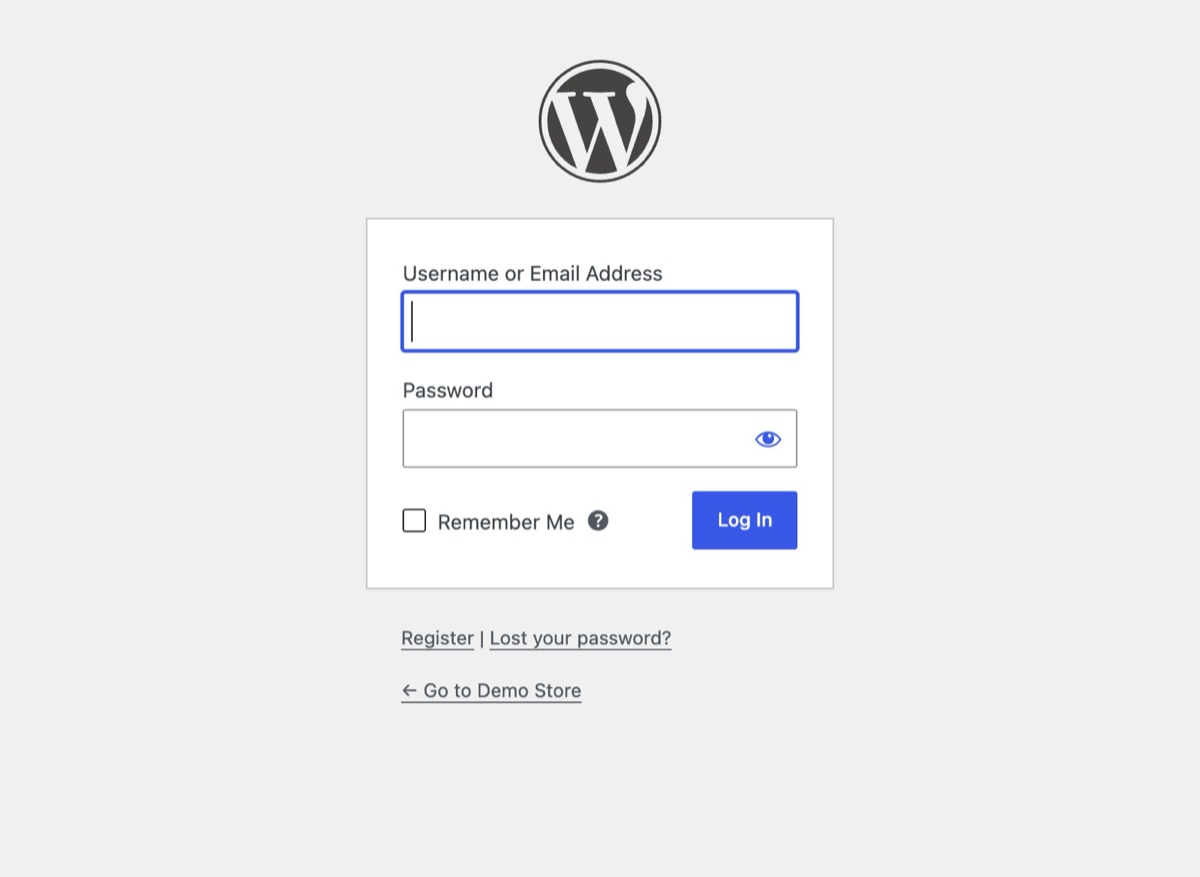
Open yoursite.com/wp-login.php in a browser. On a standard install the login form appears for anyone, which is why bots try it first.
2Step 2
Turn on Hide Login and choose a path
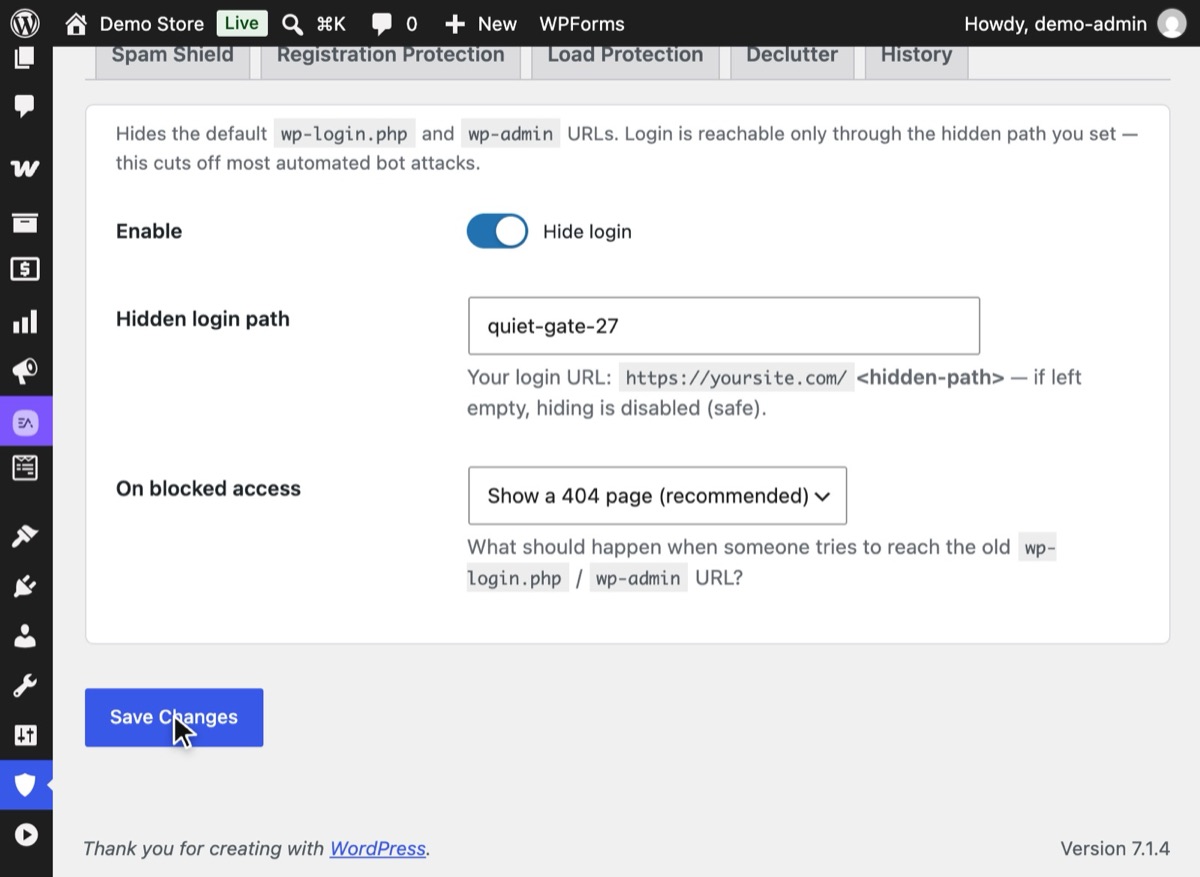
In WordPress, open Hushfort → Hide Login. Switch on Enable, type a path that is easy for you and hard to guess, such as quiet-gate-27, leave "On blocked access" on the 404 page and press Save Changes. Your new login URL appears under the field.
3Step 3
Save the new URL somewhere private
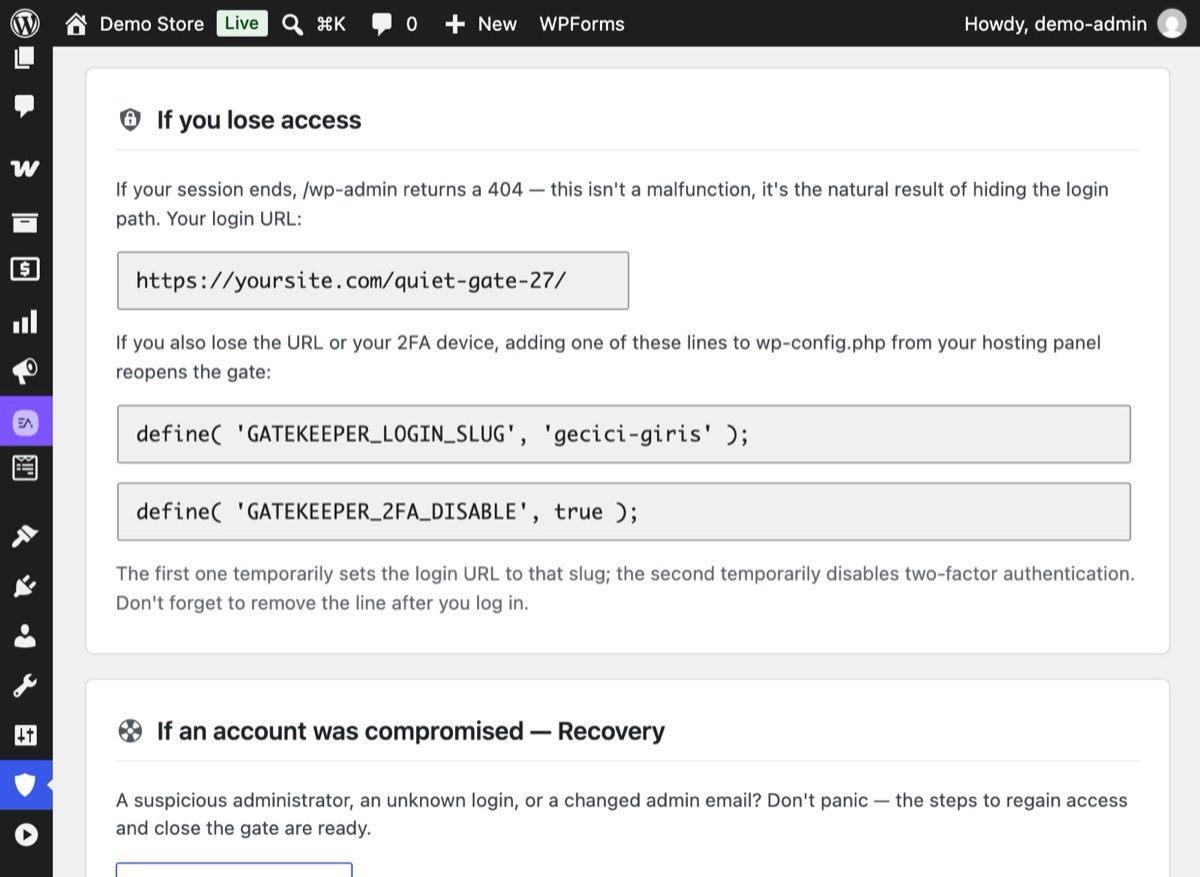
Hushfort's Overview keeps your login URL in the "If you lose access" card. Copy it into your password manager now, before you do anything else. This one step prevents almost every lockout.
4Step 4
Test in a private window before you log out
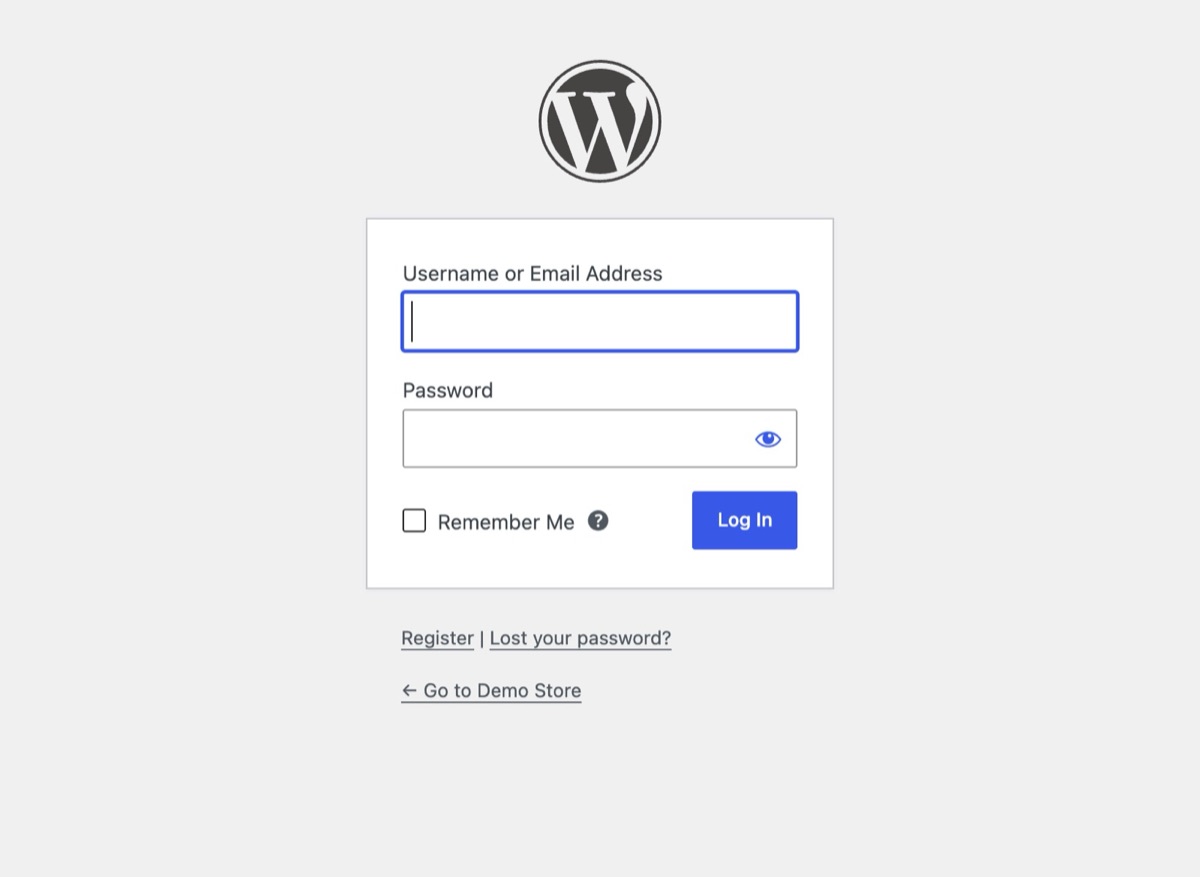
Keep your current tab logged in. Open a private window and visit the new path; the normal WordPress login form should appear.
5Step 5
Confirm the old doors are closed
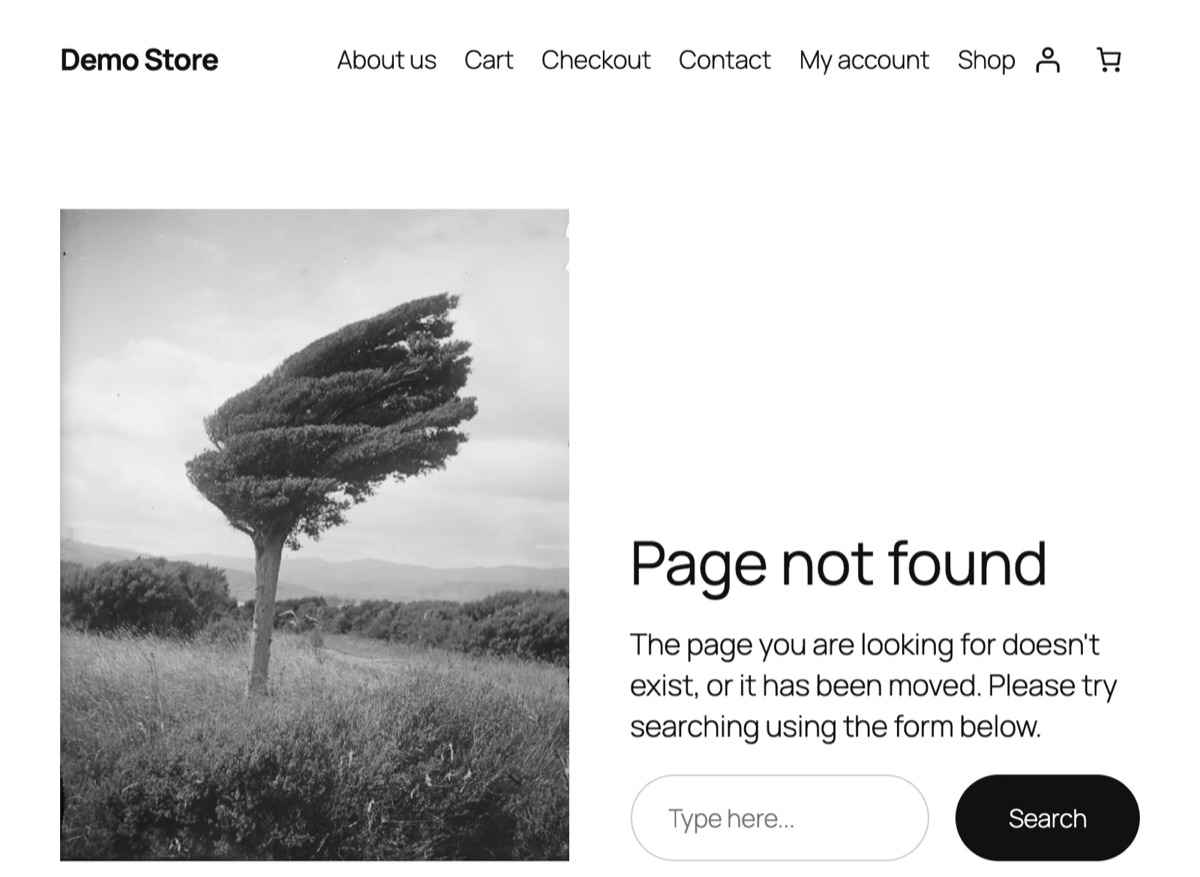
In the same private window, visit wp-login.php and wp-admin. Both should now show your theme's "Page not found" page, the same as any address that doesn't exist.

Why it matters
Every WordPress site in the world answers at the same two addresses: /wp-login.php and
/wp-admin. Bots know this. They don't need to find your login page; they simply request
it on every site they can reach and start guessing passwords.
Moving the login to a path only you know takes your site out of that crowd. Automated guessing scripts hit a 404 and move on. Your logs get quieter, your server does less work, and the attempts that remain are easier to read.
What this does not do. Hiding the login is an obscurity layer. It removes the easy
target, but it does not lock anything. WordPress has other doors, most importantly
xmlrpc.php, which accepts usernames and passwords on its own. A hidden login page with an
open XML-RPC door is like a hidden front gate next to an unlocked side gate. Treat this step
as the first of several:
- limit failed login attempts,
- add two-factor login for administrators,
- close XML-RPC login and username leaks,
- use strong, unique passwords and keep WordPress updated.
Common mistakes
- Logging out before testing. Always test the new path in a private window while your main tab is still logged in. If something is wrong, you can still fix it.
- Not saving the URL. "I'll remember it" is the most common cause of lockouts. Put it in your password manager.
- Choosing an obvious path.
/login,/adminand/secureare the first things bots try. Use something that isn't a common word on its own. - Forgetting the other doors. If XML-RPC login is still open, password guessing simply moves there. See how to disable XML-RPC safely.
- Caching the new path. If a CDN or page cache stores the login page, the form can break.
Exclude the path from caching, as you would for
wp-login.php.
Without a plugin
There is no setting in WordPress to change the login URL. The manual methods are:
Rename wp-login.php. Some guides suggest copying wp-login.php to a new file name and
replacing every reference inside it. This breaks the moment WordPress updates, because the
update restores the original file and your copy goes stale. We don't recommend it.
Restrict the file at the server. On Apache you can limit wp-login.php to your own IP
address in .htaccess:
<Files wp-login.php>
  Require ip 203.0.113.10
</Files>
This is solid if you always work from one fixed address. It locks you out the day your IP
changes, and it doesn't help on Nginx or LiteSpeed setups without a matching rule. It also
doesn't hide wp-admin redirects.
Use HTTP basic auth. Many hosts let you put a password on wp-login.php from their
control panel. It works, but it adds a second login box for everyone, and it can break
admin-ajax.php calls from the front end if it's applied too widely.
The honest summary: the manual routes either break on updates or depend on a fixed IP. A plugin that intercepts the request is simpler and survives updates.
If something goes wrong
The new path shows a 404. Check the path for typos, then clear your page cache and CDN cache and try again in a fresh private window.
You're locked out. Add this line to
wp-config.php, above "That's all, stop editing!":define( 'GATEKEEPER_LOGIN_SLUG', 'new-path' );The login form opens at
yoursite.com/new-pathstraight away.No file access to wp-config.php? Delete the
hushfort-securityfolder from/wp-content/plugins/with FTP or your host's file manager. WordPress returns to its default login.
The full recovery guide is in Locked out after changing the login URL.
With Hushfort
Hushfort's Hide Login layer does nothing until you choose a path, so turning it on can't lock you out by accident. Once you set a path:
wp-login.phpandwp-adminreturn a 404 (or, if you prefer, redirect to your homepage or a URL you choose).admin-ajax.php, the REST API, WP-Cron and XML-RPC keep working, so your theme and plugins behave as before.- The dashboard keeps an "If you lose access" card with your current login URL and the emergency line.
- Deactivating the plugin returns WordPress to its normal login.
Because Hushfort also includes Login Limits, Two-Factor and Backdoor Lock for XML-RPC, the hidden login is one wall among several, not the only one.
Frequently asked questions
Is changing the WordPress login URL safe?
Does hiding the login page stop hackers?
What should the old wp-login.php address show?
What if I forget my new login URL?
Will changing the login URL break my cache or CDN?
Related how-tos
Why does wp-admin show a 404 after I changed the login URL, and how do I get back in?
Forgot your custom login URL or lost your 2FA phone? Four calm ways back into WordPress, from one line in wp-config.php to removing the plugin folder.
Read the stepsHow do I limit login attempts in WordPress?
Stop brute-force password guessing by locking out an IP after a few failed logins. Settings that work, the manual code, and the holes to close.
Read the stepsWhat is xmlrpc.php, and how do I disable it in WordPress?
xmlrpc.php is a second login door that a hidden login page doesn't close. How to shut it safely, keep pingbacks if you want, and test the result.
Read the steps