Why does wp-admin show a 404 after I changed the login URL, and how do I get back in?
By Eureka Studio · Updated
Short answer
Don't panic; your site is fine. Open wp-config.php through your host's file manager or FTP and add a line that sets the login path, then log in there. For two-factor problems, use a recovery code or the 2FA off switch. As a last resort, delete or rename the security plugin's folder; WordPress then restores the default login.
Steps
1Step 1
Confirm what you're seeing
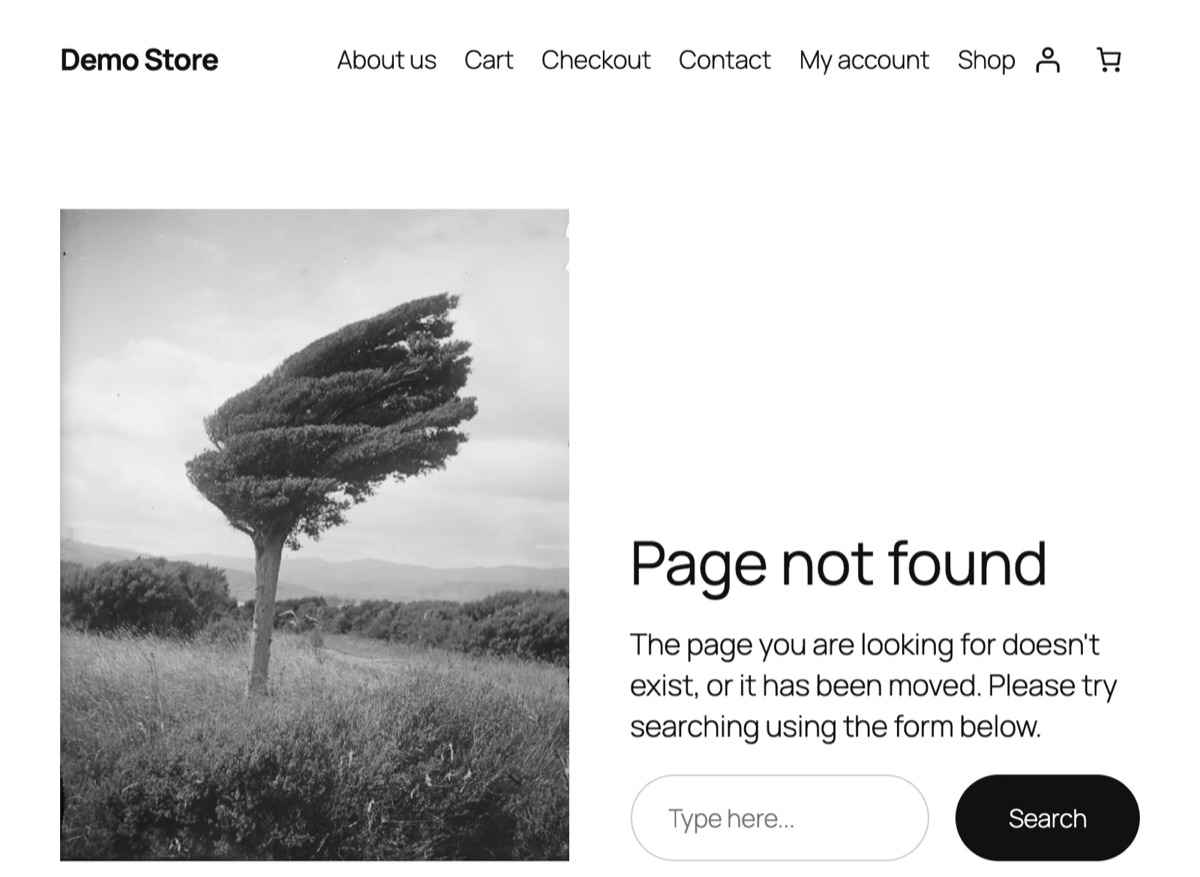
If wp-login.php and wp-admin show your theme's "Page not found" page, the login is hidden, not broken. Your site and content are untouched.
2Step 2
Set a new login path from wp-config.php
Open wp-config.php in your site's root folder and add this line above "That's all, stop editing!". Save the file.
wp-config.php define( 'DB_COLLATE', '' ); define( 'GATEKEEPER_LOGIN_SLUG', 'new-path' ); /* That's all, stop editing! Happy publishing. */3Step 3
Log in at the new path
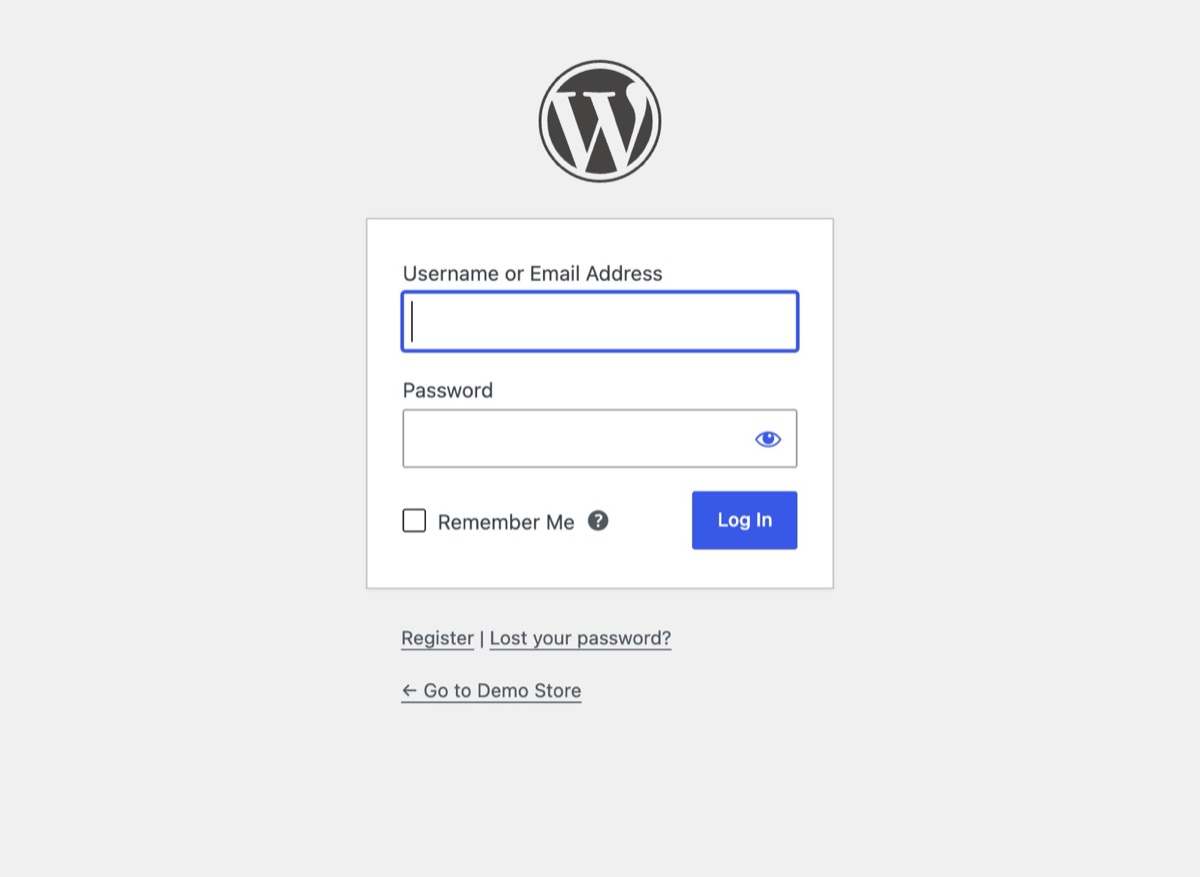
Visit yoursite.com/new-path. The login form appears straight away. Save the address in your password manager this time, then remove the line again if you like; Hushfort's own setting takes over.
4Step 4
Lost your 2FA phone? Use a recovery code or the switch
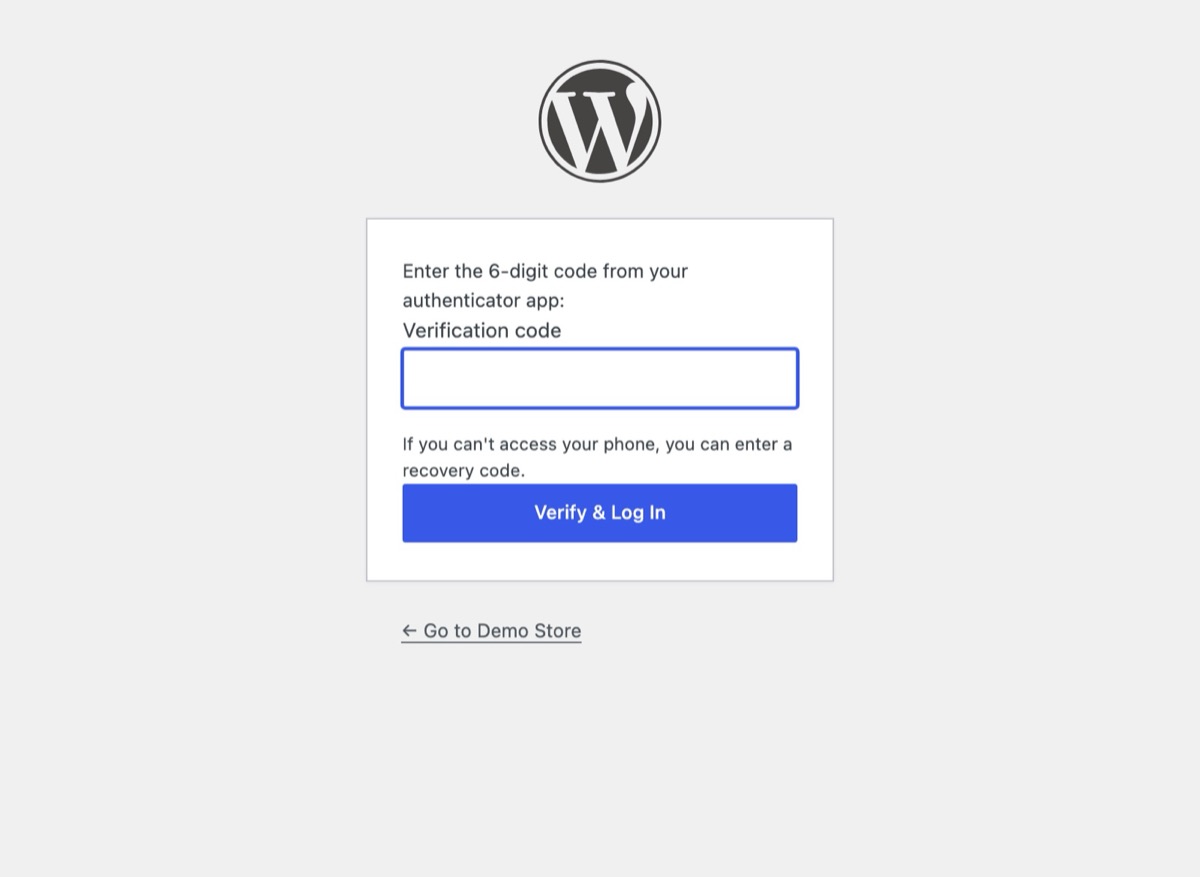
After your password, the code screen says "If you can't access your phone, you can enter a recovery code." Type one of your saved codes there. If you have none, add define( 'GATEKEEPER_2FA_DISABLE', true ); to wp-config.php, log in, set up 2FA again and remove the line.
5Step 5
Last resort: remove the plugin folder
With FTP or your host's file manager, open /wp-content/plugins/ and delete or rename hushfort-security. WordPress switches the plugin off and wp-login.php works again.
Over SSH or in a file manager cd wp-content/pluginsmv hushfort-security hushfort-security.off
Why it matters
A hidden login works because nobody can guess it, including, sometimes, you. Forgetting a custom login URL is the most common lockout with any hide-login tool. Losing the phone with your authenticator app is the second.
Neither is a disaster, and neither needs your password or a support ticket. As long as you can reach your site's files, you can always get back in. The calm order is: easiest first, most disruptive last.
Before you start, find your way into the site's files. That's one of:
- your host's control panel → File Manager,
- an FTP or SFTP client with the details from your host,
- SSH, if your plan includes it.
Common mistakes
- Reinstalling WordPress. Not needed, and risky. The fix is one line or one folder.
- Editing the wrong file. Use
wp-config.phpin the WordPress root, notwp-config-sample.php. - Adding the line below "stop editing". Lines after that comment may never be read. Put it above.
- Curly quotes. Copying from a word processor can turn
'into’, which breaks PHP. Type the quotes plainly or copy from this page. - Leaving the 2FA switch on. The 2FA off line disables two-factor for every user. Remove it as soon as you're back in.
- Not saving the URL afterwards. Put it in your password manager now.
Without a plugin
If you hid the login by hand rather than with a plugin, undo the change you made:
- Renamed
wp-login.php? Rename it back, or re-upload a cleanwp-login.phpfrom a fresh WordPress download of the same version. - Added an
.htaccessrule (IP restriction or password)? Remove the rule, or add your current IP to it. - Host-level protection? Turn it off in your host's control panel, or ask support.
For other plugins, the usual fix is the same as the last resort here: rename that plugin's
folder in /wp-content/plugins/ to switch it off.
If you're locked out by a login limit rather than a hidden URL, wait for the lockout to end or try from another network, such as your phone's mobile data.
If something goes wrong
- The new path still shows a 404. Check the line for typos and straight quotes. Clear your page cache and CDN cache, then try again in a private window.
- You see a white screen after editing wp-config.php. There's a PHP syntax error. Remove the line you added, save, and add it again carefully.
- Renaming the folder didn't help. Another security plugin, a server rule or your host may
also be protecting the login. Check
/wp-content/plugins/and.htaccess. - Still stuck? Email [email protected] with what you see. Never send passwords or recovery codes.
With Hushfort
Hushfort is built so you rarely need this page:
- Hide Login does nothing until you choose a path, so turning it on can't lock you out.
- The dashboard's "If you lose access" card shows your current login URL and the emergency lines, so you can save them while you're still logged in.
GATEKEEPER_LOGIN_SLUGin wp-config.php sets the login path at any time.GATEKEEPER_2FA_DISABLEswitches two-factor off for recovery.- Recovery codes can be downloaded or printed when you set up 2FA, and admins can reset another user's 2FA.
- Deactivating or removing the plugin returns WordPress to its defaults:
wp-login.phpopens again and lockouts are lifted.
The same steps live on our Locked out? page for quick access.
Frequently asked questions
Why does wp-admin show a 404 after I changed the login URL?
Where is wp-config.php?
Will deleting the plugin folder lose my content?
Do I need to keep the wp-config.php line forever?
I don't have FTP or file manager access. What now?
Related how-tos
How do I change the WordPress login URL?
Change the WordPress login URL and hide wp-admin in five safe steps. Test before you log out, and know how to get back in if you forget it.
Read the stepsHow do I add two-factor authentication (2FA) to WordPress?
Add a second login step with any authenticator app. Set up 2FA in WordPress, save recovery codes, and know what to do if you lose your phone.
Read the stepsHow do I limit login attempts in WordPress?
Stop brute-force password guessing by locking out an IP after a few failed logins. Settings that work, the manual code, and the holes to close.
Read the steps