How do I spot and block fake Googlebot traffic on WordPress?
By Eureka Studio · Updated
Short answer
A real Googlebot comes from Google's published IP ranges; anything that uses the name from elsewhere is fake and can be blocked. For other bad bots, give each IP a per-minute request budget where costly requests such as searches and 404s cost more, answer over-budget IPs with a short 429, and always let checkout through.
Steps
1Step 1
Spot the impostors in your traffic
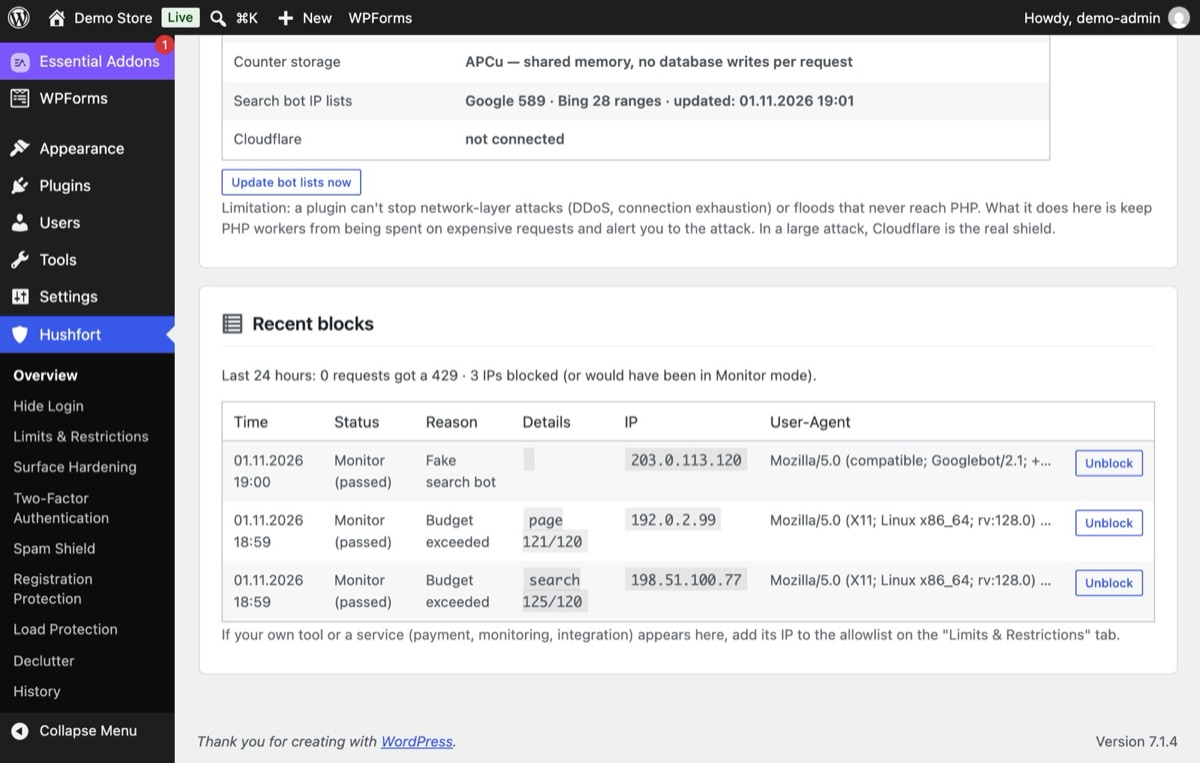
Many bots call themselves Googlebot because sites rarely block it. The name is free to copy; the IP address isn't. With the official Google and Bing lists loaded, Hushfort marks a "Googlebot" from any other address as a fake search bot.
2Step 2
Turn on Load Protection in Monitor mode
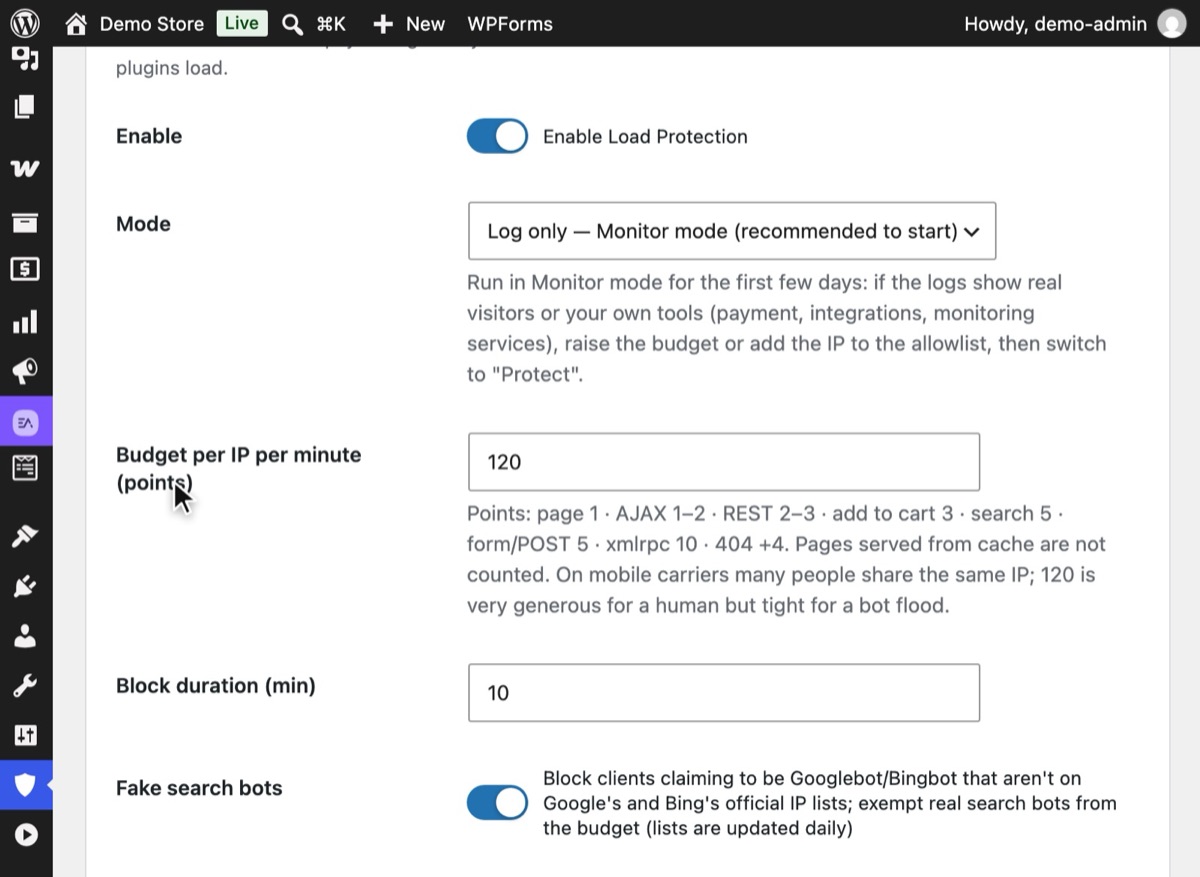
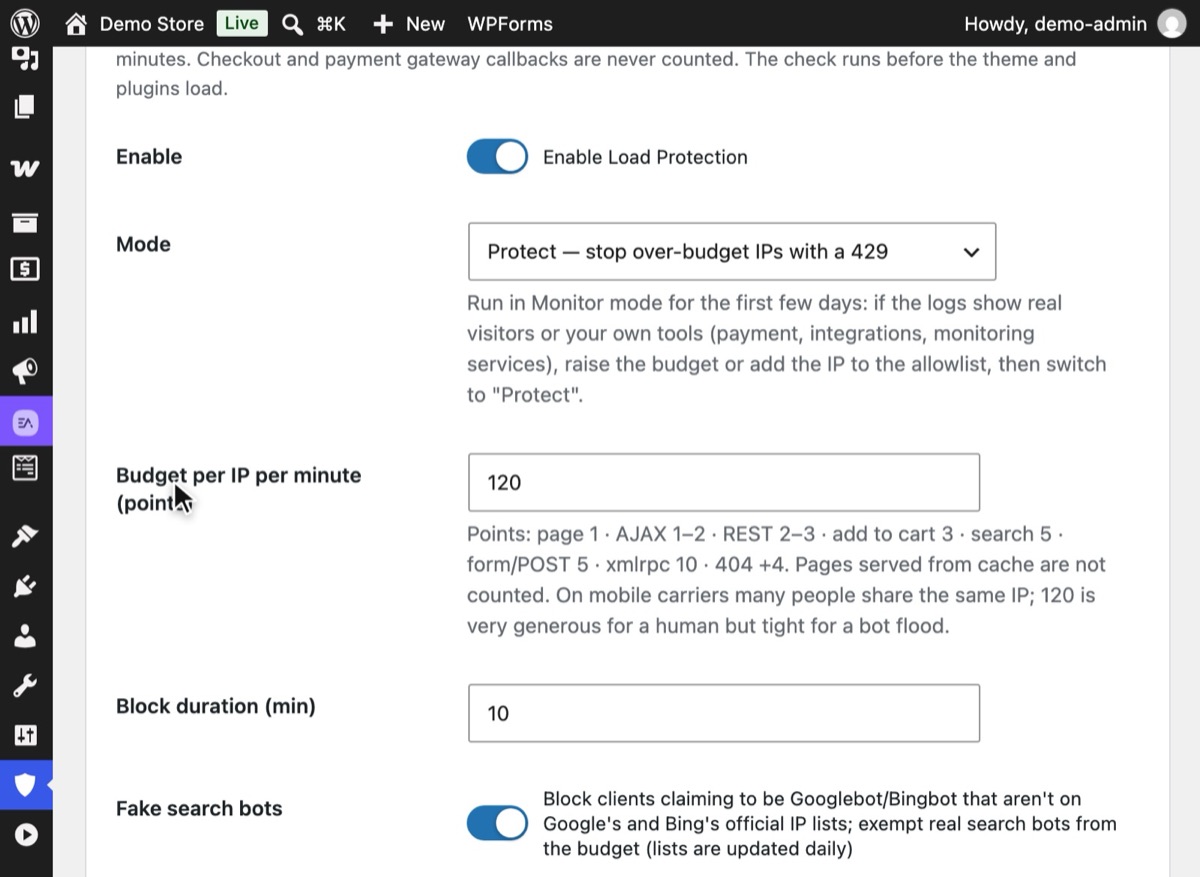
In Hushfort, open Load Protection and switch it on. Mode starts on "Log only — Monitor mode (recommended to start)": it logs which IPs would hit the limit, without blocking anyone. Keep Fake search bots on.
3Step 3
Set a budget that prices requests fairly
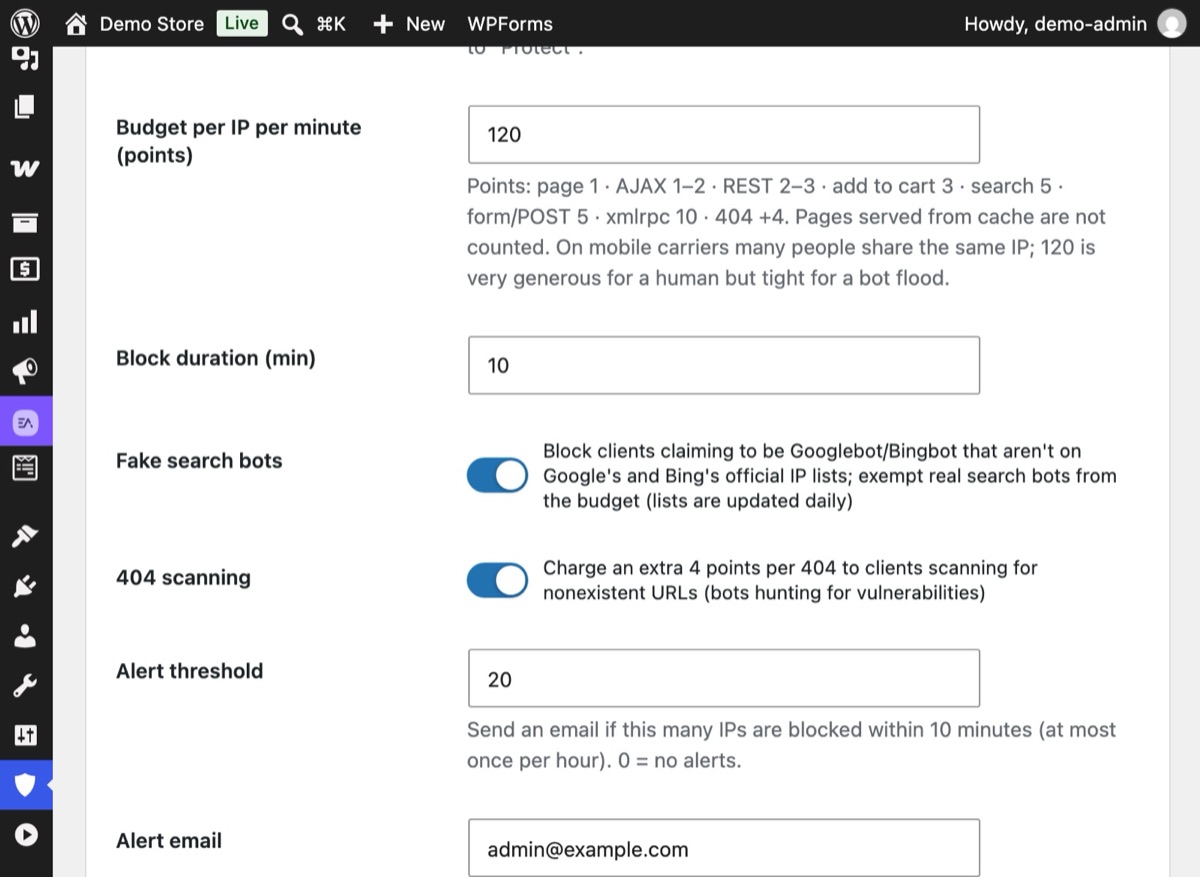
Each IP gets a Budget per IP per minute (120 points by default). A page view costs 1, a search 5, an XML-RPC call 10, and a 404 adds 4. Checkout and payment callbacks are free.
4Step 4
Over-budget IPs get a short pause
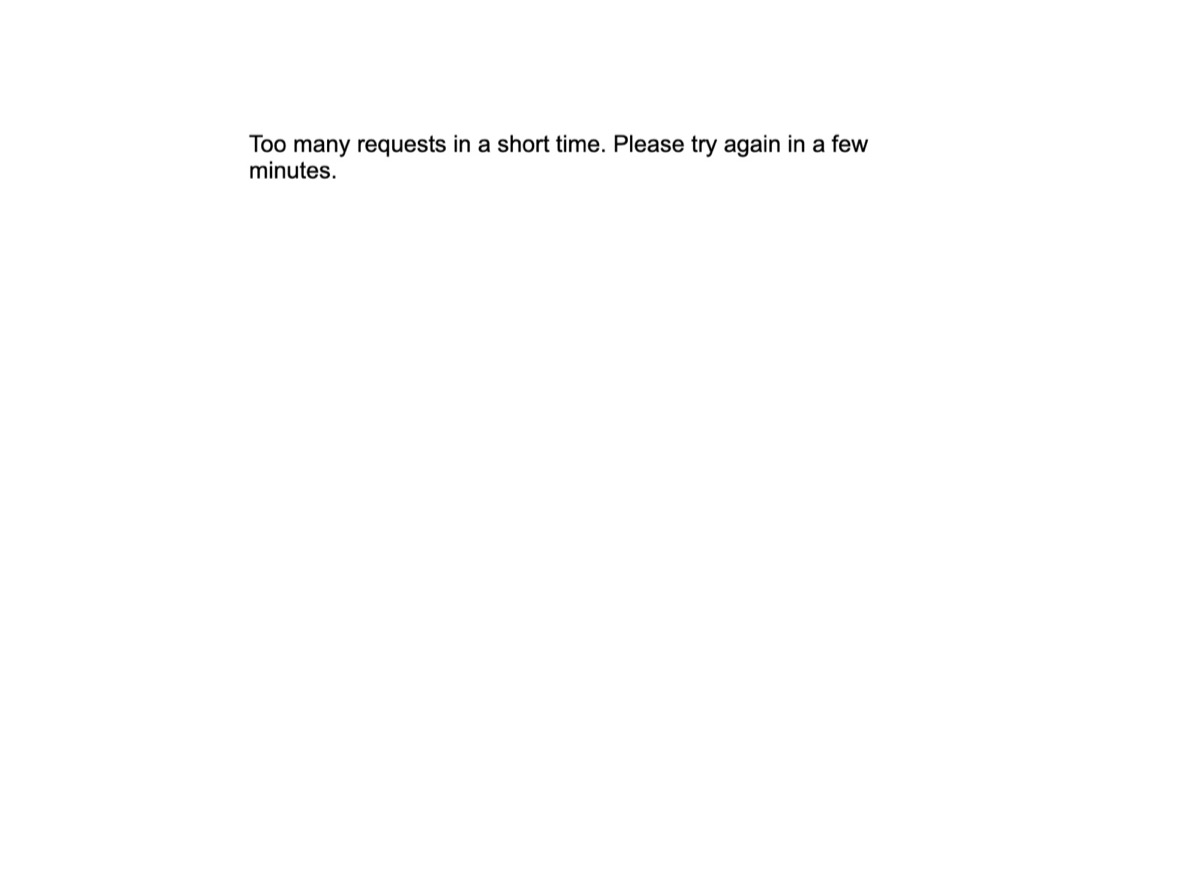
In Protect mode, an IP that spends its budget gets a 429 "Too many requests" page for the Block duration, 10 minutes by default. Verified search bots are exempt, and checkout keeps working.
5Step 5
Check the log, then switch to Protect
After a few days in Monitor mode, review Recent blocks. If no real visitors appear, set Mode to "Protect — stop over-budget IPs with a 429" and save.


Why it matters
Not every slow day is a traffic success. Some bots crawl a site far harder than any person: hammering the search box with random words, probing hundreds of missing files, or pretending to be Googlebot so nobody dares block them. Each of those requests skips the page cache and makes WordPress and the database do real work.
On shared hosting that means slow pages, CPU limits and sometimes a suspended account. On a store it means real customers waiting while a bot runs searches.
The trick is to tell expensive requests from cheap ones. Counting "requests per minute" treats a cached page view and an uncached search as equal. Pricing them by cost lets you be generous to real visitors and strict with the patterns only bots produce.
Common mistakes
- Blocking by user agent. Anyone can claim to be Googlebot, and blocking the name blocks the real one too. Verify by IP.
- One limit for everything. A flat requests-per-minute rule either lets search floods through or catches fast-browsing customers. Price requests by cost.
- Blocking checkout. A rate limit that can stop a payment callback or a checkout costs you real money. Keep those free.
- Long bans. A day-long ban on a shared IP can block an entire office or mobile network. Short pauses are enough to break a bot's rhythm.
- Expecting a plugin to stop network floods. Traffic big enough to fill the server's connection never reaches WordPress. That's a job for your CDN.
Without a plugin
Verify Googlebot by hand. For a suspicious IP from your access log:
host 66.249.66.1
# 1.66.249.66.in-addr.arpa domain name pointer crawl-66-249-66-1.googlebot.com.
host crawl-66-249-66-1.googlebot.com
# crawl-66-249-66-1.googlebot.com has address 66.249.66.1
Both directions must match and end in googlebot.com or google.com. Google also publishes
its crawler IP ranges as a JSON file you can compare against.
Rate-limit at the server. On Nginx you can cap requests per IP:
# in the http block
limit_req_zone $binary_remote_addr zone=perip:10m rate=60r/m;

# in the server block
location / {
    limit_req zone=perip burst=20 nodelay;
    limit_req_status 429;
    try_files $uri $uri/ /index.php?$args;
}
Server rules are fast, but they don't know WordPress. They can't tell checkout from a search, they need root access most hosting plans don't give you, and maintaining Google's IP list by hand is tedious. A CDN firewall is another good option if yours lets you write rules.
If something goes wrong
- A real visitor got a 429. Look the IP up in the log. If it's an office or a tool you use, add it to the allowlist. Consider raising the per-minute budget.
- Search Console reports crawl errors. Real Google crawlers are exempt, so check that the errors aren't from a server or CDN rule outside Hushfort.
- The site is still overwhelmed. The flood may be too large for any plugin. Switch on your CDN's attack mode. Hushfort's emergency mode can switch Cloudflare's "Under Attack" mode for you, using your own API key, and switch it back afterwards.
With Hushfort
Hushfort's Load Protection layer gives each IP a budget of 120 points per minute by default. Page views cost 1, admin-ajax GET 1 and POST 2, REST GET 2 and POST 3, add-to-cart 3, search 5, other POSTs 5, XML-RPC 10, and a 404 adds 4. Checkout, payment callbacks, WP-Cron and wp-admin screens are free.
- Over-budget IPs get a short 429 and a 10-minute pause.
- Fake Googlebots and Bingbots, which claim the name from an IP not on the official list, are blocked. Verified search bots are exempt. The only outbound fetch is Google's and Bing's public crawler IP lists.
- Emergency mode can switch Cloudflare's "Under Attack" mode with your own API key.
- It starts in Monitor mode.
In our own testing, an IP over its budget still completed checkout while its other requests got a 429.
Frequently asked questions
How do I know if a Googlebot visit is real?
Will blocking fake Googlebots hurt my SEO?
What does a 429 status mean?
Can a plugin stop a DDoS attack?
Why do searches and 404s cost more?
Related how-tos
How do I stop spam user registrations in WordPress?
Stop spam signups on WordPress and WooCommerce with hourly limits, a site-wide ceiling and invisible honeypots, without ever blocking checkout.
Read the stepsHow do I find unused plugins in WordPress?
Find plugins that are installed but do nothing, see how much code they load on every page, and remove them in two reversible steps.
Read the stepsWhat is xmlrpc.php, and how do I disable it in WordPress?
xmlrpc.php is a second login door that a hidden login page doesn't close. How to shut it safely, keep pingbacks if you want, and test the result.
Read the steps